Following the successful setup of the SAP BW Bridge Tenant and its integration with the S/4HANA source system, we will commence with a test scenario involving the migration of Business Content into the Datasphere at the Business Entities layer.
For this scenario, we intend to develop a straightforward report to ascertain material quantity from the S/4HANA ERP system via SAP BW Bridge and subsequently transfer it to the Datasphere. For transactional data, we will utilize the comprehensive source table FI ACDOCA, and for material text and attributes, we will employ DataSources 0Material_Text and 0Matreial_Attr, respectively, from the S/4HANA source system.
Prerequisite: The S/4HANA system must be connected to the SAP BW Bridge prior to this process. Details on how to establish this connection can be found in this blog article.
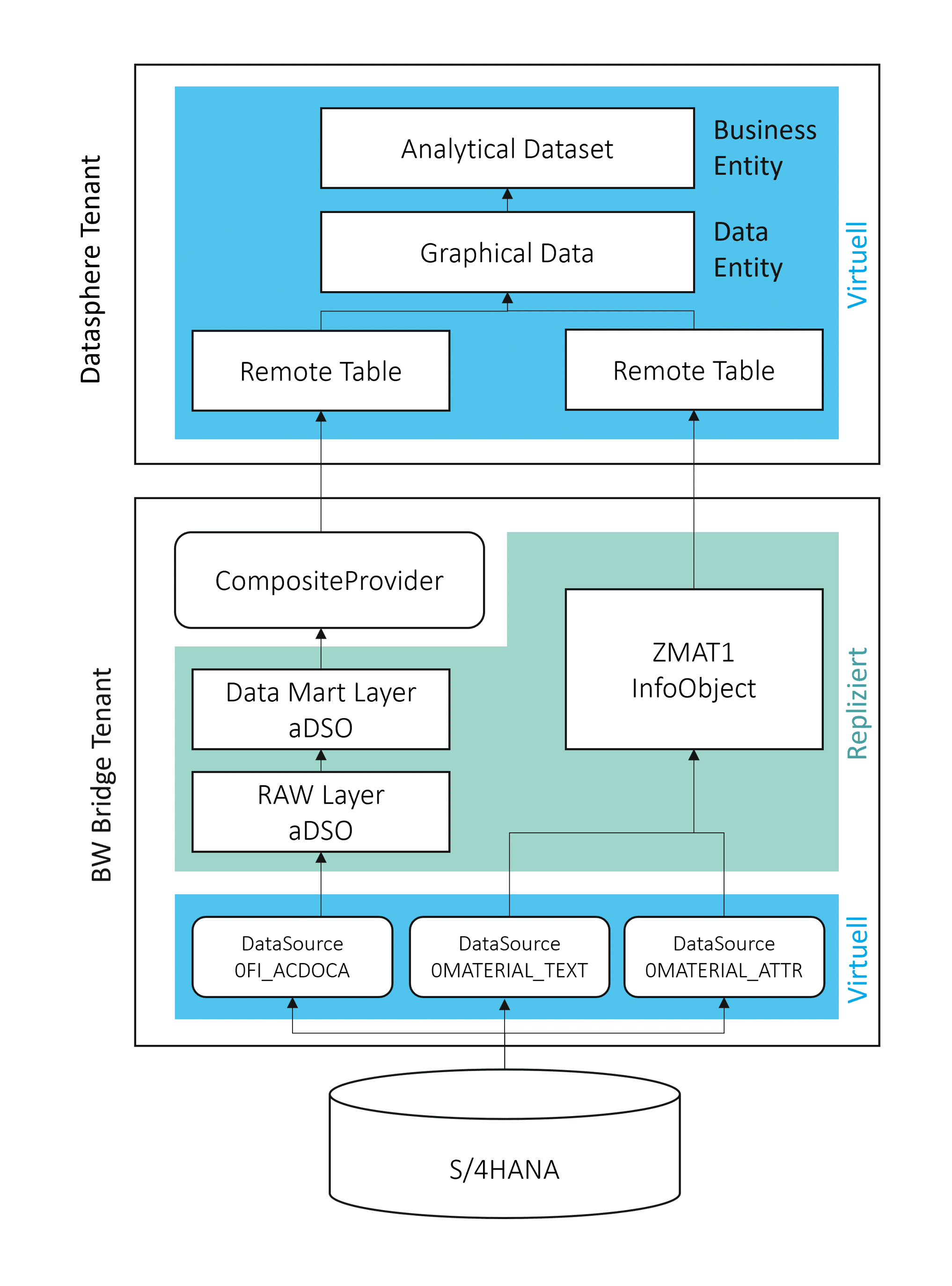
ODP extractors are utilized for data provisioning. Data replication will be executed within the Bridge Tenant, commencing with a RAW layer and concluding with a Data Mart layer. All subsequent steps will be performed remotely within the Datasphere.
The following diagram illustrates the architecture of the report:
Fig. 1: Report Architecture | isr.de
More Blog Articles from Our BW Series
Power BI-Connector: Enhanced Connectivity for SAP HANA Databases
The Power BI SAP HANA integration quickly encounters limitations. The ISR connector facilitates, …
Upon successful connection to the S/4HANA system, a range of DataSources becomes available. Nevertheless, these DataSources may not be automatically visible within the repository and therefore require manual addition and activation.
How to activate a DataSource: 1.1. Log in to your S/4HANA source system. 1.2. Call transaction RSA5.
1.3. Select 'SAP' and expand the tree structure.
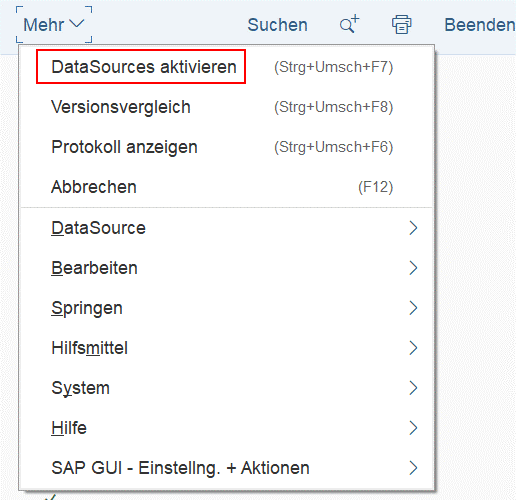
1.4. Search for the required DataSource. In this instance: 0FI_ACDOCA_10. 1.5. Click 'Activate'.
Following activation, the respective DataSource should be visible within transaction RSA6.
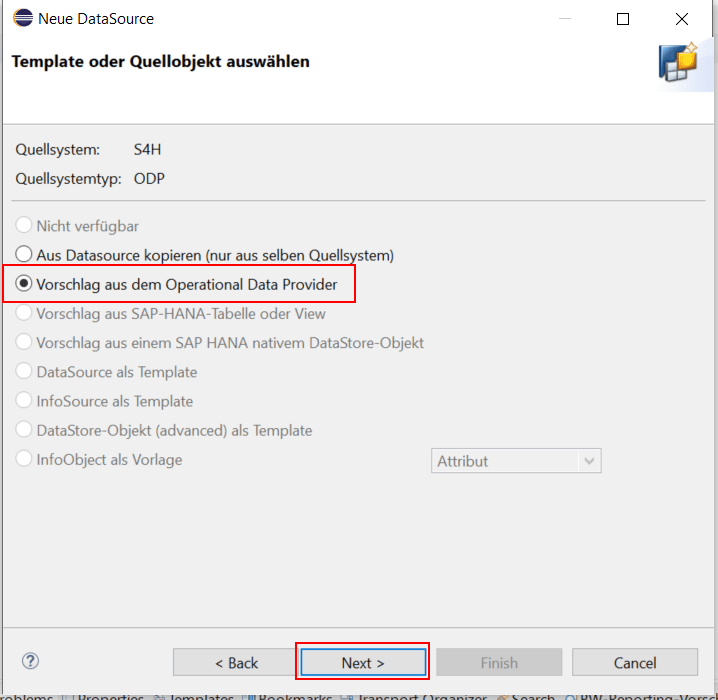
1.6. Open the Eclipse modeling tools and add a new DataSource.
Step 2: Replication in SAP BW Bridge
For the scope of this scenario, three DataSources from the S/4HANA system are required:
(1) 0FI_ACDOCA_10: The Universal Journal, which encompasses all financial postings within the S/4HANA ERP system.
(2) 0MATERIAL_TEXT: Master data table, which includes all text attributes of material data.
(3) 0MATERIAL_ATTR: Master data table, which encompasses all attributes for each material.
The transactional data is initially directly adopted and replicated into an aDSO object within the SAP BW Bridge. This aDSO represents the raw data layer (RAW-Layer) in our SAP BW architectural model.
2.1 Transactional Data Replication
Prerequisite: DataSource 0FI_ACDOCA_10 is activated.
2.1.1. We open our Eclipse modeling tools and log into the SAP BW Bridge tenant.
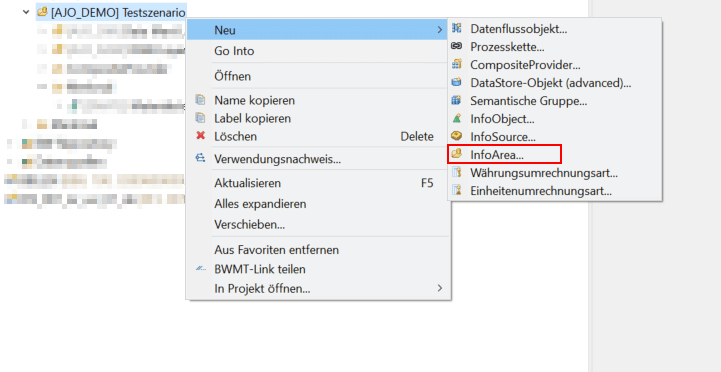
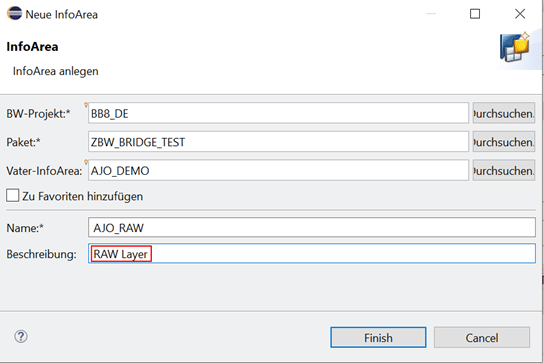
2.1.2. For the RAW data layer, we first recommend creating a dedicated InfoArea. We name this InfoArea: RAW-Layer.
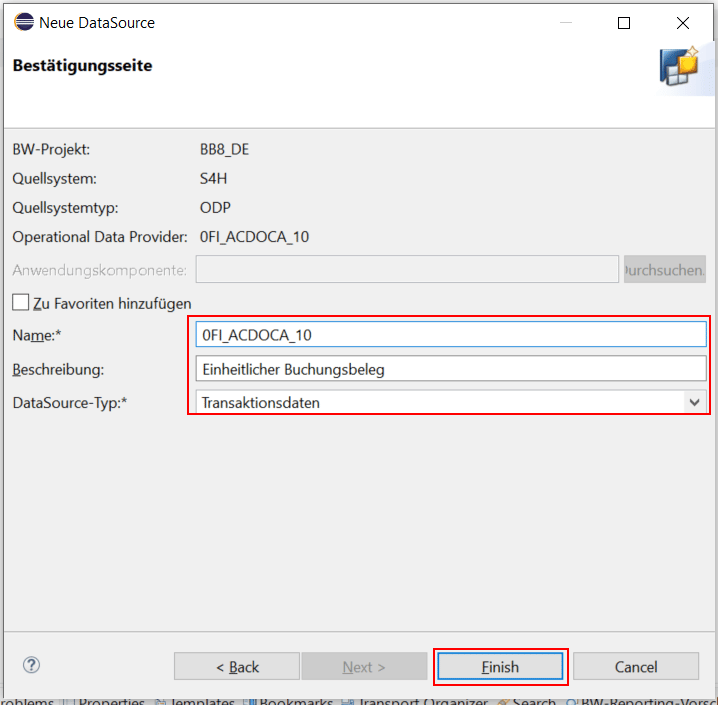
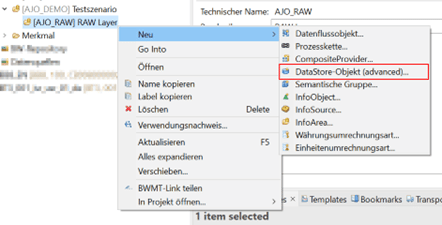
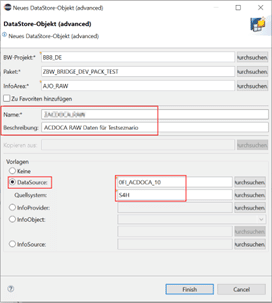
2.1.3. To replicate the transactional data from the ACDOCA table, we create a new Advanced DataStore Object (aDSO). We use DataSource 0FI_ACDOCA_10 as a template, ensuring that the exact same structure is transferred.
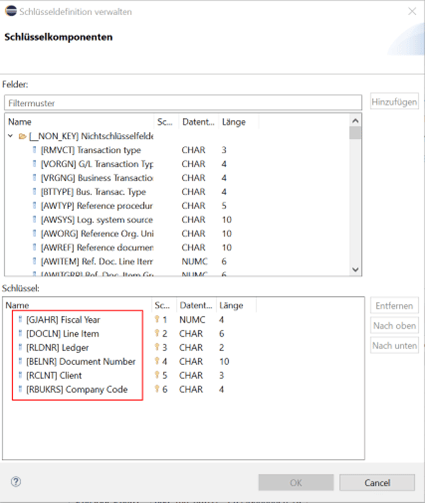
2.1.4. To configure the aDSO as a Standard aDSO, keys must be defined. Under “Details” > “Manage Keys”, we select the desired fields to serve as keys and drag them into the lower field. We choose: “Fiscal Year”, “Line Item”, “Ledger”, “Document Number”, “Client”, and “Company Code”, then finally click “OK”.
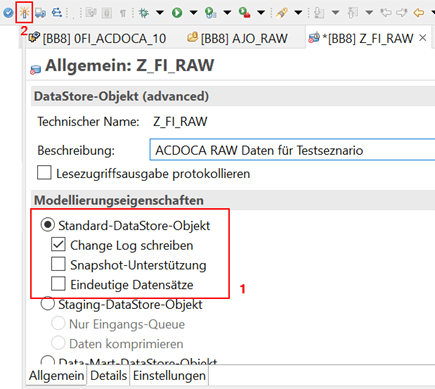
2.1.5. Next, we set the modeling properties of the aDSO under “General” > “Modeling Properties” to “Standard aDSO” and activate it.
We now have an empty DataStore Object, which closely resembles the ACDOCA table in the ERP system, and only needs to be loaded with data.
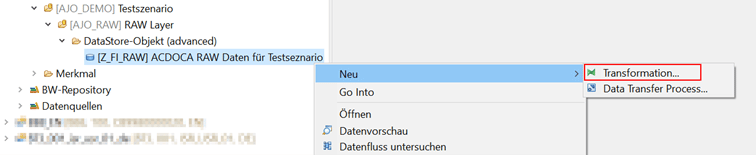
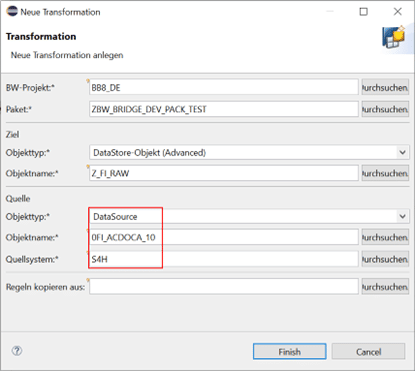
2.1.6. For data loading, we create a new transformation and select DataSource: 0FI_ACDOCA_10 as the source.
2.1.7. Finally, we ensure that all mapping arrows between the source and the target are correct and then click “Activate”.
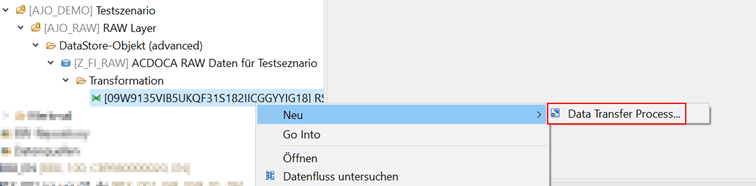
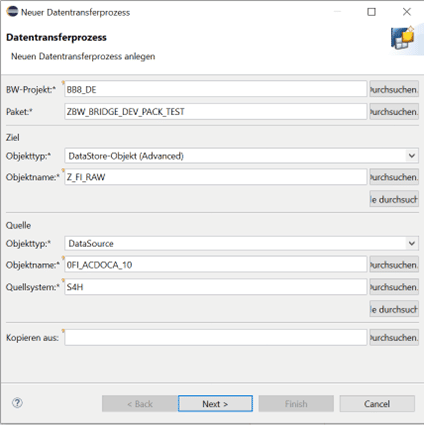
2.1.8. For the loading process, we create a new Data Transfer Process (DTP) under the transformation created above.
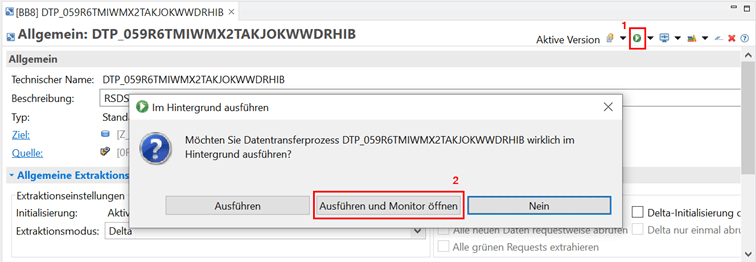
2.1.9. After activation, we execute the DTP and simultaneously open the monitor.
Upon clicking “Execute and Open Monitor”, all transactional data from the ACDOCA table is loaded into the aDSO. Concurrently, a new browser window (BW Cockpit) opens, allowing the process progress to be tracked. Once the process is complete, one final step remains: activating the data. The data currently resides in the aDSO's inbound table and must be moved to the active data table.
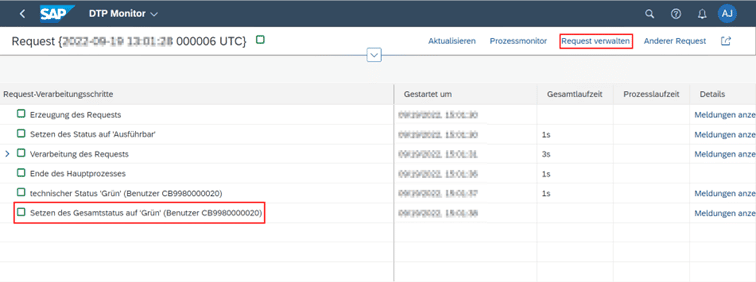
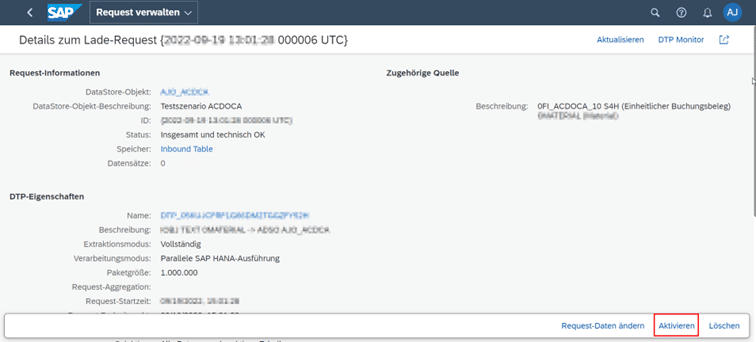
2.1.10. For activation, in the DTP Monitor, we click “Manage Request”, then “Activate”.
Thus, we have successfully replicated all transactional data to our SAP BW Bridge tenant. You can now view the data using the Data Preview function and further model it as required.
2.2 Creation of the Data Mart (optional)
After processing all transactional data in the RAW-Layer, in practice, data undergoes transformation, adaptation, and cleansing before being exported for reporting purposes. In our example, data cleansing is applied solely as a filtering operation on the fields required for our test scenario.
We have retained the following fields from the ACDOCA table: Download Table.
Note: In a classic SAP BW system, it is typically possible at this point to integrate InfoObjects, which allow linking the master data and texts of the respective characteristics with the transactional data. This remains possible in SAP BW Bridge; however, this combination is lost when transferring to Datasphere. For this reason, we will omit this step in SAP BW Bridge and perform it differently later at the Datasphere level.
2.3 Master Data Replication
Prerequisite: DataSources 0MATERIAL_TEXT & 0MATERIAL_ATTR are active.
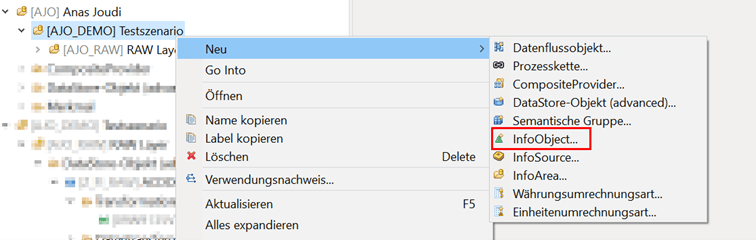
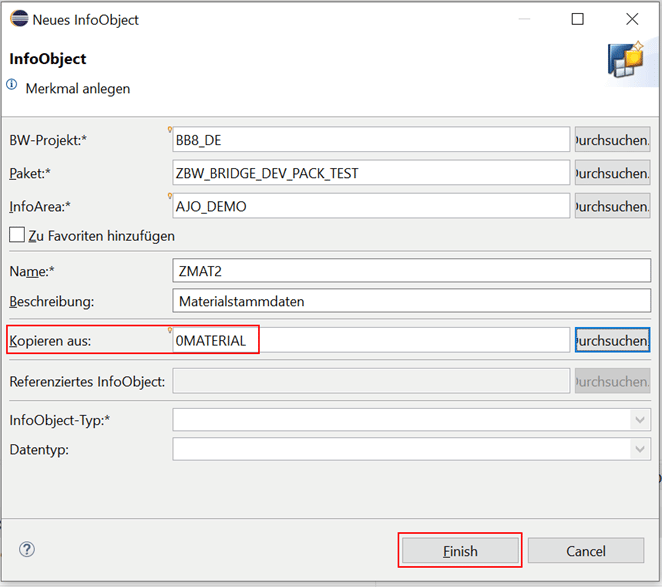
2.3.1 We create a new InfoObject for material texts and attributes:
2.3.2 We recommend copying the InfoObject structure from an existing InfoObject '0Material'. This is located under the 'Cross-Application Component' folder in the SAP BW Repository of your SAP BW Bridge Tenant and can optionally be used directly.
Note: If you wish to use the native '0Material' InfoObject instead of 'ZMAT1', you must still follow the subsequent steps to populate the material master data from the source system.
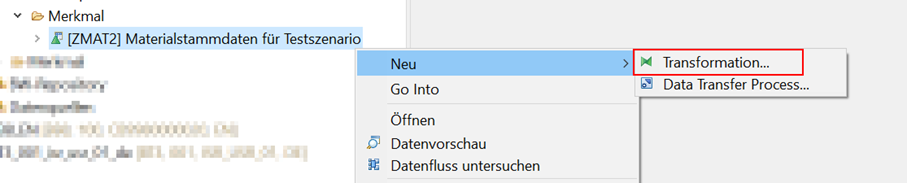
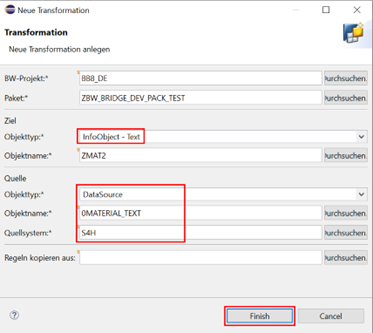
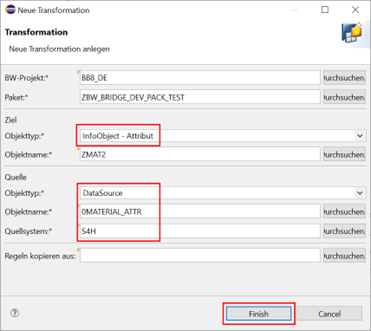
2.3.3. Now, for texts and attributes, we create a new Transformation and a Data Transfer Process respectively. The same steps apply as in instruction steps 2.1.6 to 2.1.10.
Note: When loading texts, we select the DataSource '0MATERIAL_TEXT' with the object type 'InfoObject – Text' as the source for the target. When loading attributes, we select the DataSource '0MATERIAL_ATTR' with the object type 'InfoObject – Attributes' as the source for the target (see screenshots).
2.4 Composite Provider
The final step in SAP BW Bridge would be the creation of a Composite Provider, which incorporates the Data Mart aDSO and is ready for transfer to Datasphere.
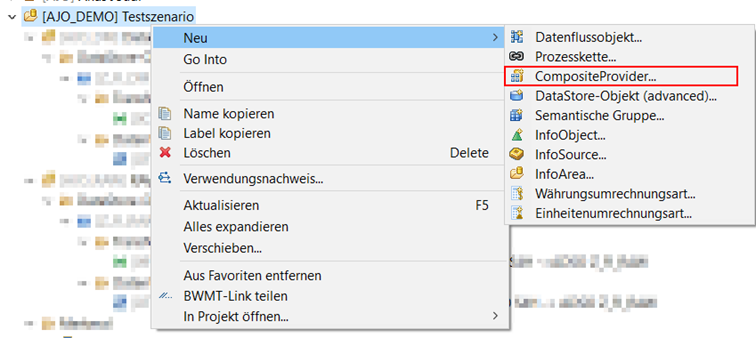
2.4.1. In our InfoArea, we create a new Composite Provider.
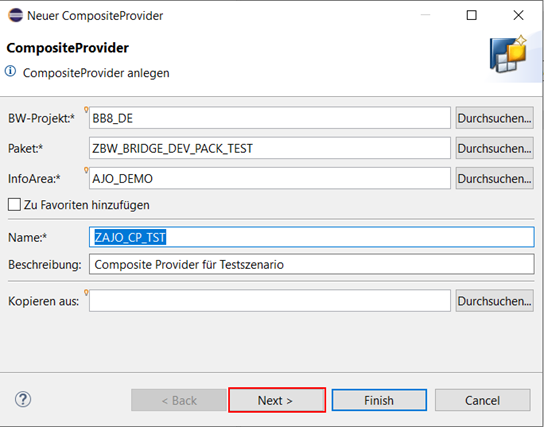
2.4.2. We name the new Composite Provider and click 'Next'.
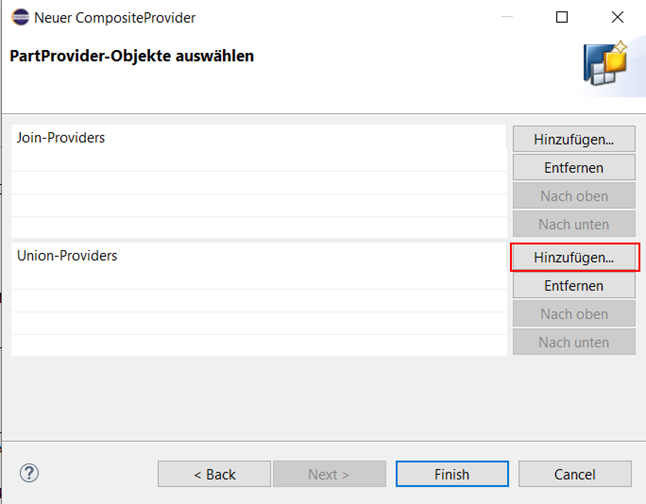
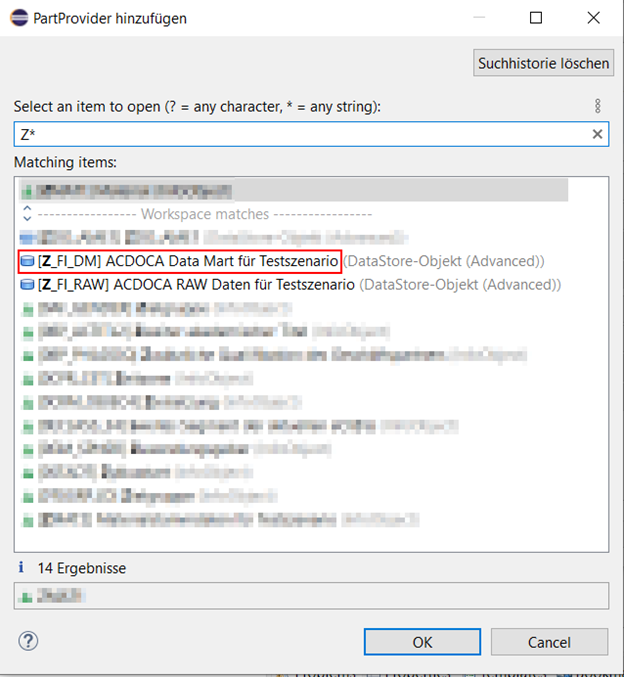
2.4.3. Under 'Union-Providers', we add the Data Mart aDSO and finally click 'Finish'.
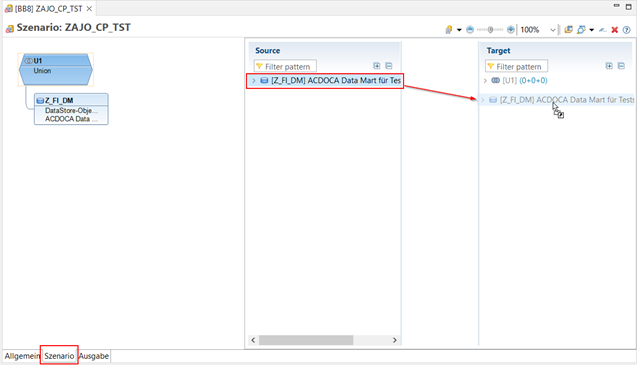
2.4.4. After creating the Composite Provider, we navigate to the 'Scenario' tab and drag and drop the aDSO from the source area to the target area (see screenshot). Finally, we activate the Composite Provider, thereby completing the modeling process in SAP BW Bridge.
End Result:
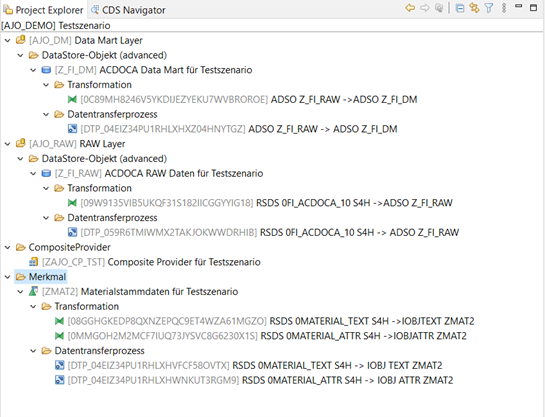
Our modeling process in SAP BW Bridge is now complete. From the DataSources, we have created an InfoObject and thus obtained master data consisting of attributes and texts (see screenshot: Characteristic). Similarly, we have incorporated an aDSO into the Composite Provider, which contains data from a RAW aDSO, from which transactional data is extracted from DataSource 0FI_ACDOCA_10.
Step 3: Datasphere Integration
The Composite Provider and the InfoObject can now be accessed and consumed as Remote Tables in Datasphere.
Prerequisite: A successful connection between Datasphere and the Bridge Tenant, as well as a Bridge Space in Datasphere, which serves as an interface between Datasphere and SAP BW Bridge.
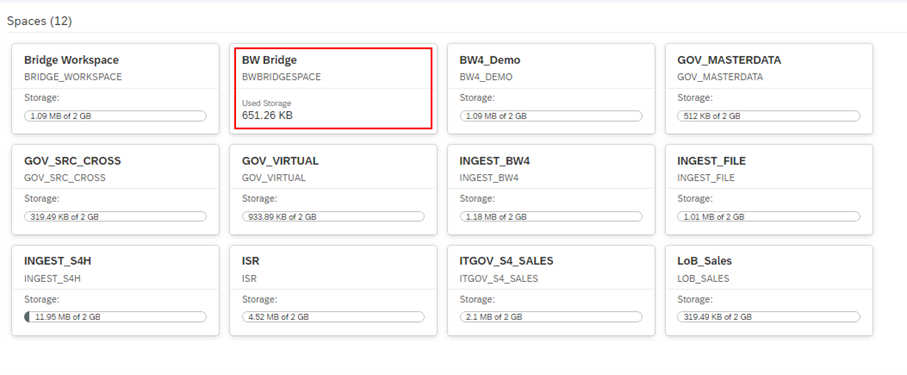
3.1.1. We open our Datasphere Tenant and under 'Data Builder', select the Bridge Space: SAP BW Bridge: Getting Started and a Setup Guide.
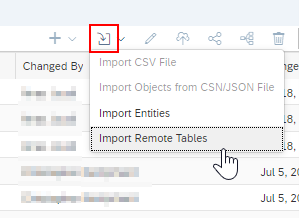
3.1.2. Under 'Import', we select 'Remote Table':
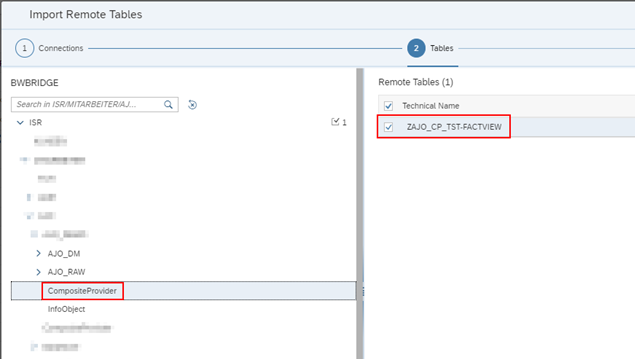
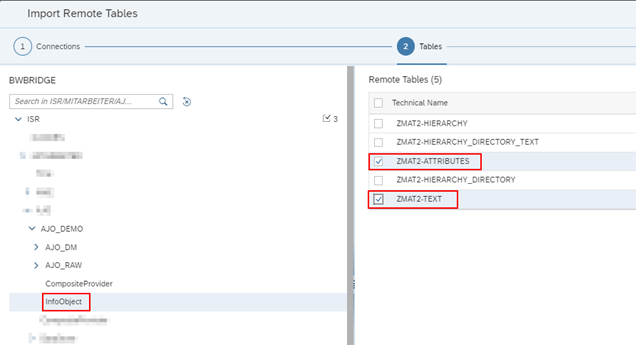
3.1.3. The Bridge Repository opens. We search for the Composite Provider and InfoObject that we created in Step 2:
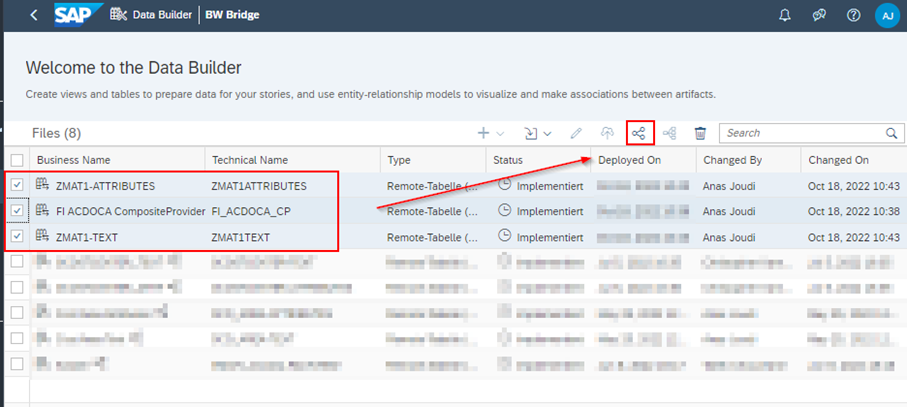
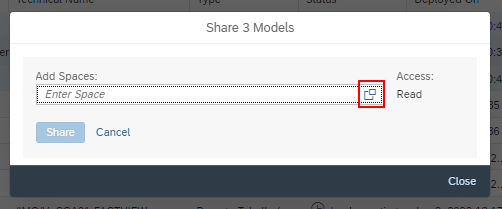
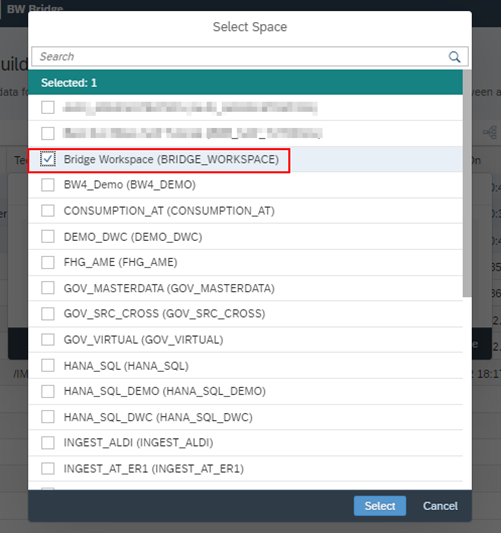
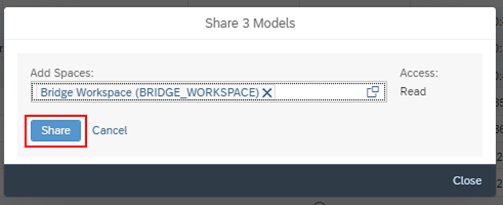
3.1.4. After the import, the data is ready for modeling; however, it cannot be further modeled in the Bridge Space. For this reason, it must be shared with another Space where further modeling will take place:
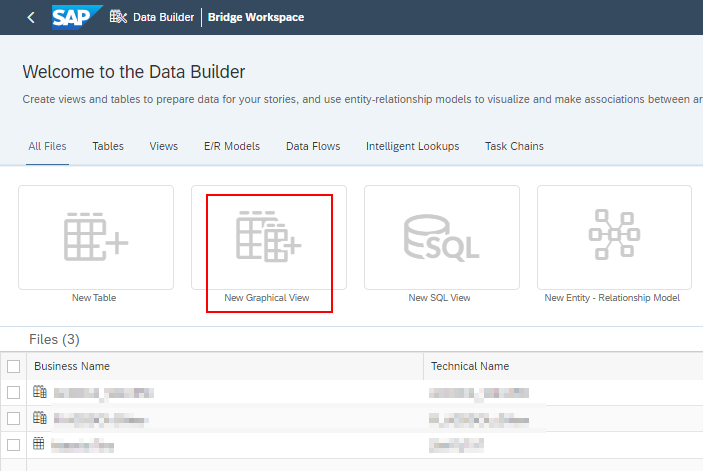
3.1.5. We now switch to the 'Bridge Workspace', where we can continue to prepare our data and create a new Graphical View.
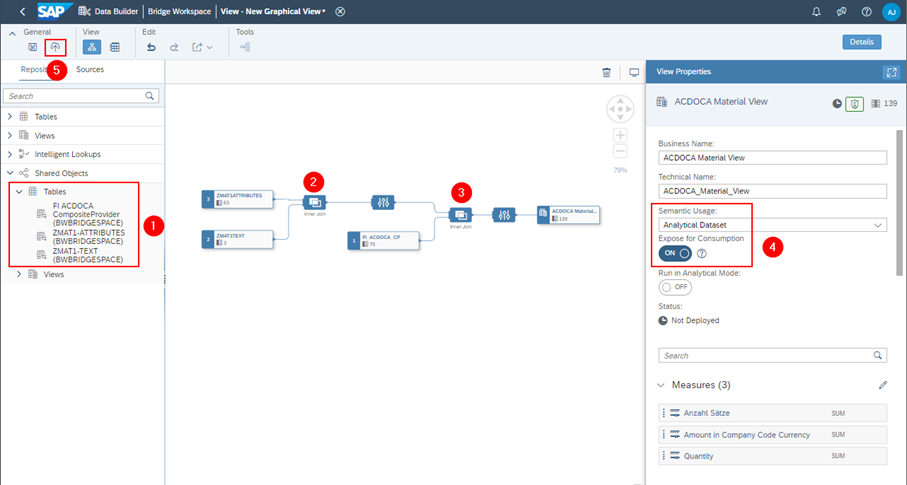
3.1.6. In the 'Shared Objects' area, the shared tables are located. Via drag and drop, we join the master data that has the Material ID as a common key, and then join the transactional table ACDOCA. We do not forget to activate the 'Expose for Consumption' option and set the semantic usage to 'Analytical Dataset'. Finally, we click Deploy.
3.1 Business Entity
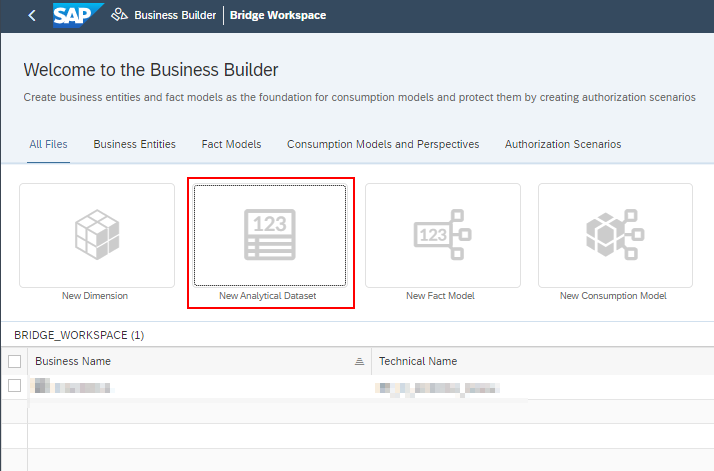
3.2.1. We now switch to the Business Builder and create a new Analytical Dataset:
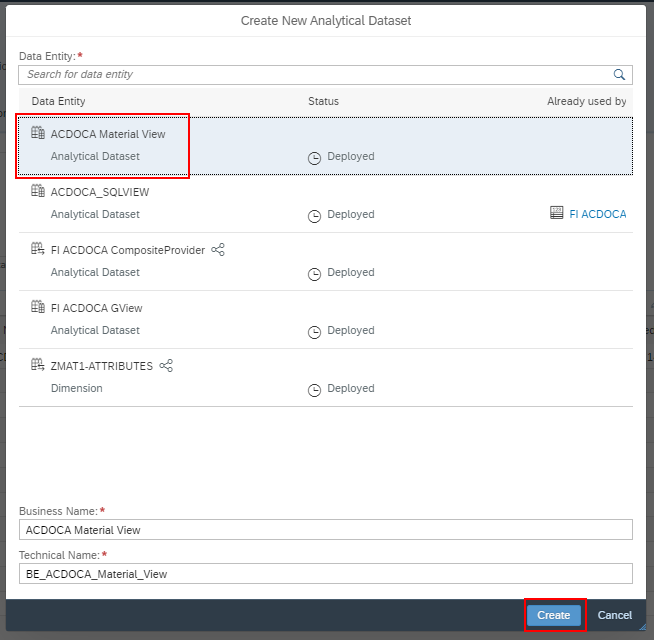
3.2.2. As the entity, we select the Graphical View created in step 3.1. and click 'Create'.
3.2.3. To adopt the key figures and attributes, we click 'Yes'.
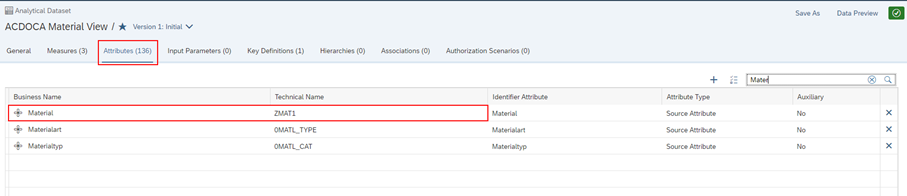
3.2.4. After creating the Analytical Dataset, we want to display the Material Description instead of the ID. To do this, we navigate to the 'Attributes' tab and search for the column: Material.
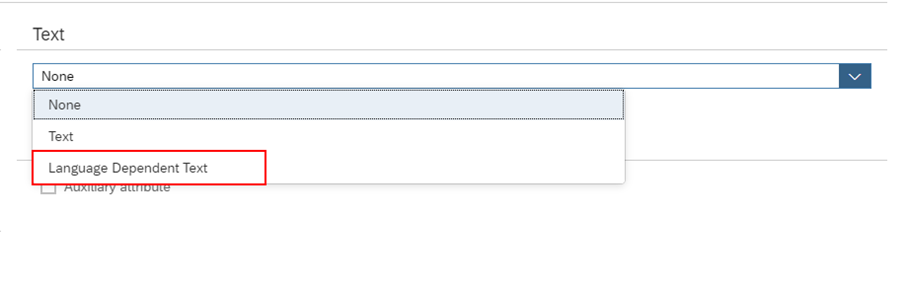
3.2.5. Under 'Text', we select 'Language Dependent Text'.
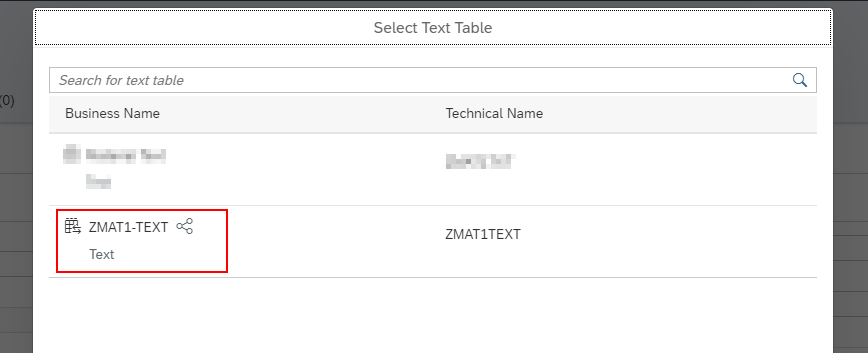
3.2.6. As the 'Text Table', we select the InfoObject 'ZMAT2' (or 0MATERIAL-TEXT).
3.2.7. We assign 'Material' as the foreign key to the field and click 'Save'.
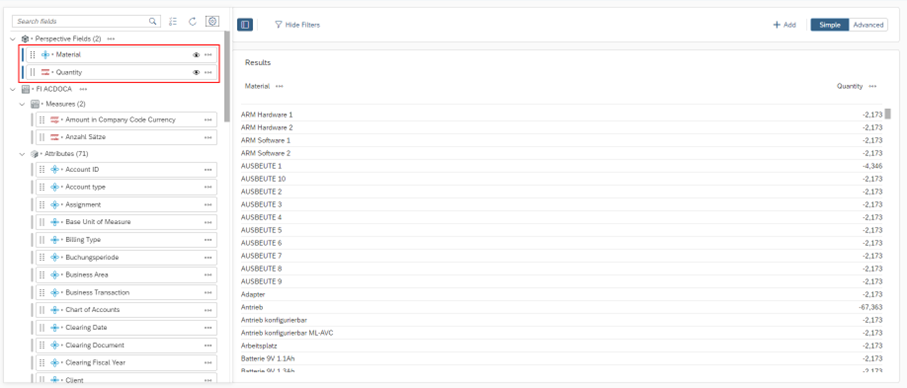
For the final result, we open a 'Data Preview' and display the 'Material' attribute and the 'Quantity' key figure. As can be seen, the text was displayed instead of the Material ID, as it was previously defined as the key.
With this, one could now proceed to create a Consumption Model with a perspective that can be used for reporting in a BI platform, for example, SAP Analytics Cloud.
This concludes our journey in SAP BW Bridge. Through this test scenario, it has become clear how SAP BW Bridge represents a hybrid infrastructure that simulates the SAP BW/4HANA component at the Datasphere level.
Since 1993, we have been operating as IT consultants for Data Analytics and Document Logistics, focusing on data management and process automation. We provide comprehensive support, from strategic IT consulting to specific implementations and solutions, all the way to IT operations, within the framework of holistic Enterprise Information Management (EIM). ISR is part of the CENIT EIM Group.