How can SAP Analytics Cloud (SAC) be utilized with Datasphere for planning processes? The potential is substantial, driven by SAP's cloud-first strategy.
SAP Analytics Cloud (SAC) has already established itself as a powerful, state-of-the-art tool for reporting. Significant development progress has been made in planning over recent years, enabling SAP's strategically positioned planning tool to be confidently recommended even for complex planning processes. With SAP Datasphere, the new release of SAP Data Warehouse Cloud (DWC), SAC has found its ideal cloud counterpart. Both aforementioned cloud tools are based on the SAP Business Technology Platform (BTP) and offer users a consistent look and feel, among other benefits.
This blog post will illustrate, using a simple example, how these two cloud systems can be jointly utilized for planning purposes.
No time to read? Watch the step-by-step guide as a video now.
1. Creating a View in SAP Datasphere for Planning
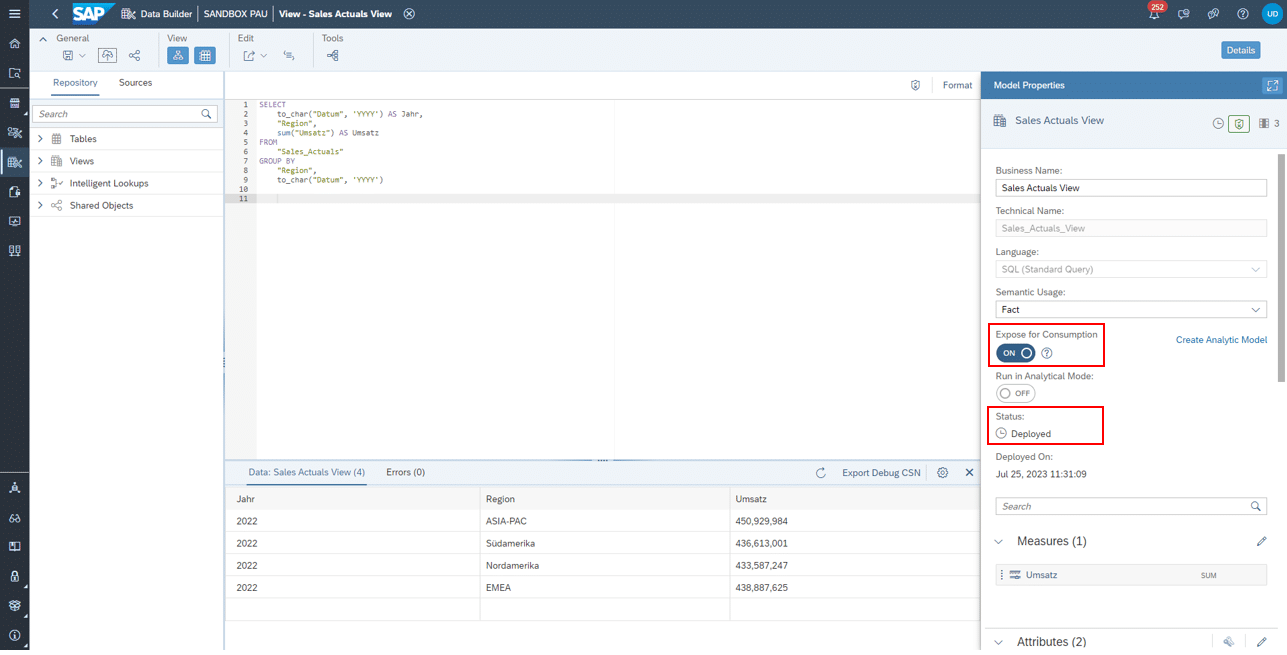
The initial step involves creating a view within Datasphere. In this example, it represents a straightforward display of actual annual revenues from various regions.
To transfer this data from Datasphere to SAC, a connection must first be established between the two systems. The primary prerequisite is to ensure that our view has a "Deployed" status and is visible to external systems. The latter can be enabled in the Model Properties under the "Exposed for Consumption" tab.
Datasphere: Model Properties of the SQL View
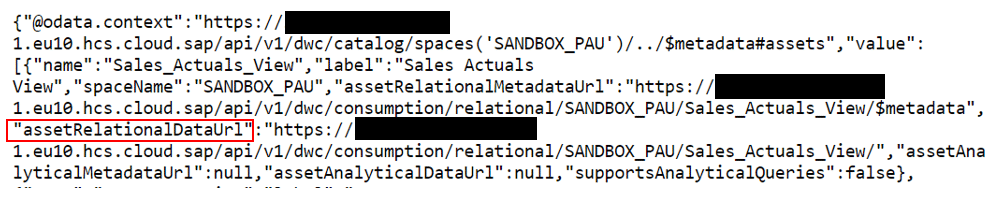
In the subsequent step, we need to determine the Data Service URL corresponding to our view. To achieve this, the following URL must be entered into the browser, with the capitalized sections adjusted accordingly.
Subsequently, an overview will appear, providing information about the individual assets within our space. From this, we extract the "assetRelationDataURL" that corresponds to our view, as this represents the Data Service URL.
2. Setting Up an OAuth Client in SAP Datasphere
Once the Data Service URL has been determined, the creation of the actual connection can commence. It is advisable to open Datasphere and SAC simultaneously in two different tabs, as the next two steps must be executed in parallel.
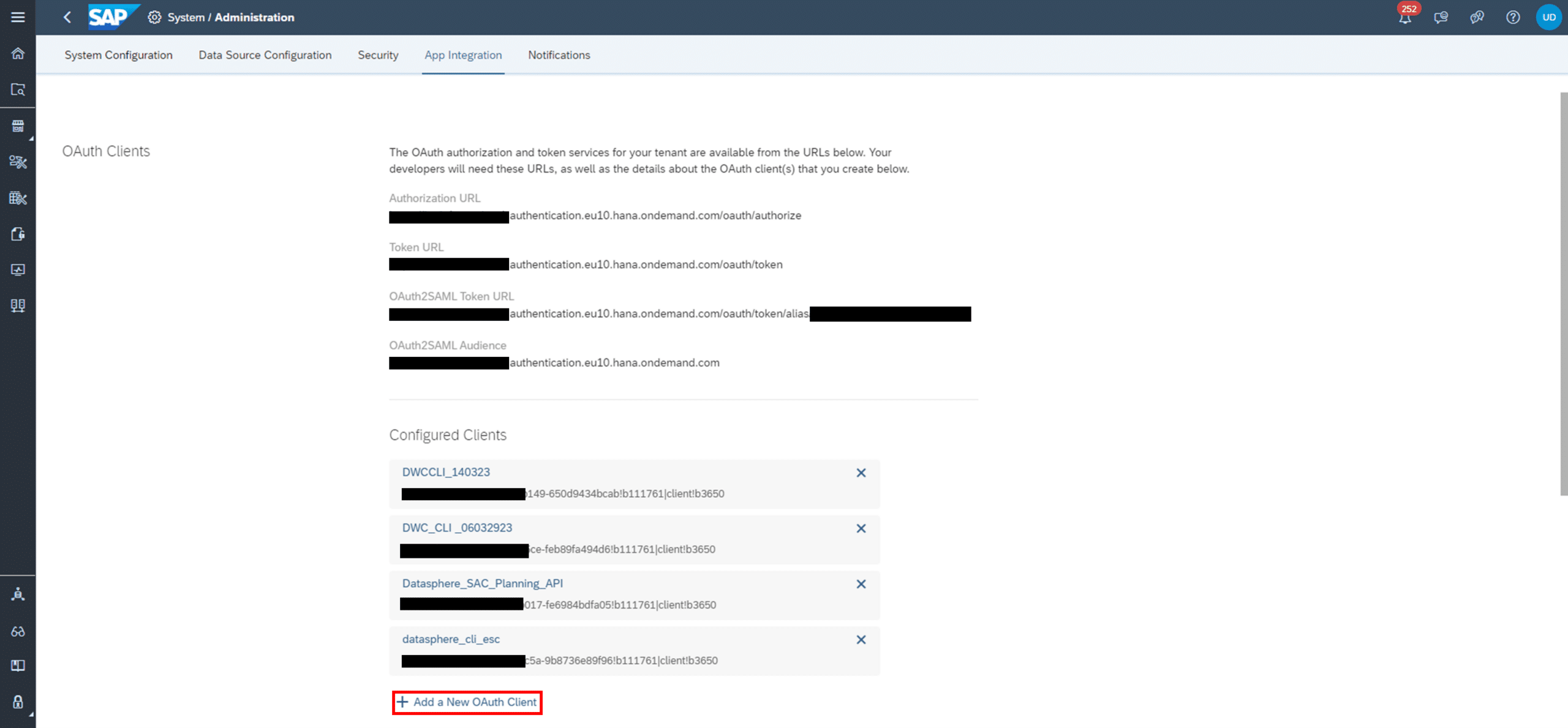
Initially, an OAuth Client must be created in Datasphere. To do this, navigate via System -> Administration -> App Integration -> Add a New OAuth Client.
Datasphere: Creation of the OAuth Client (1/2)
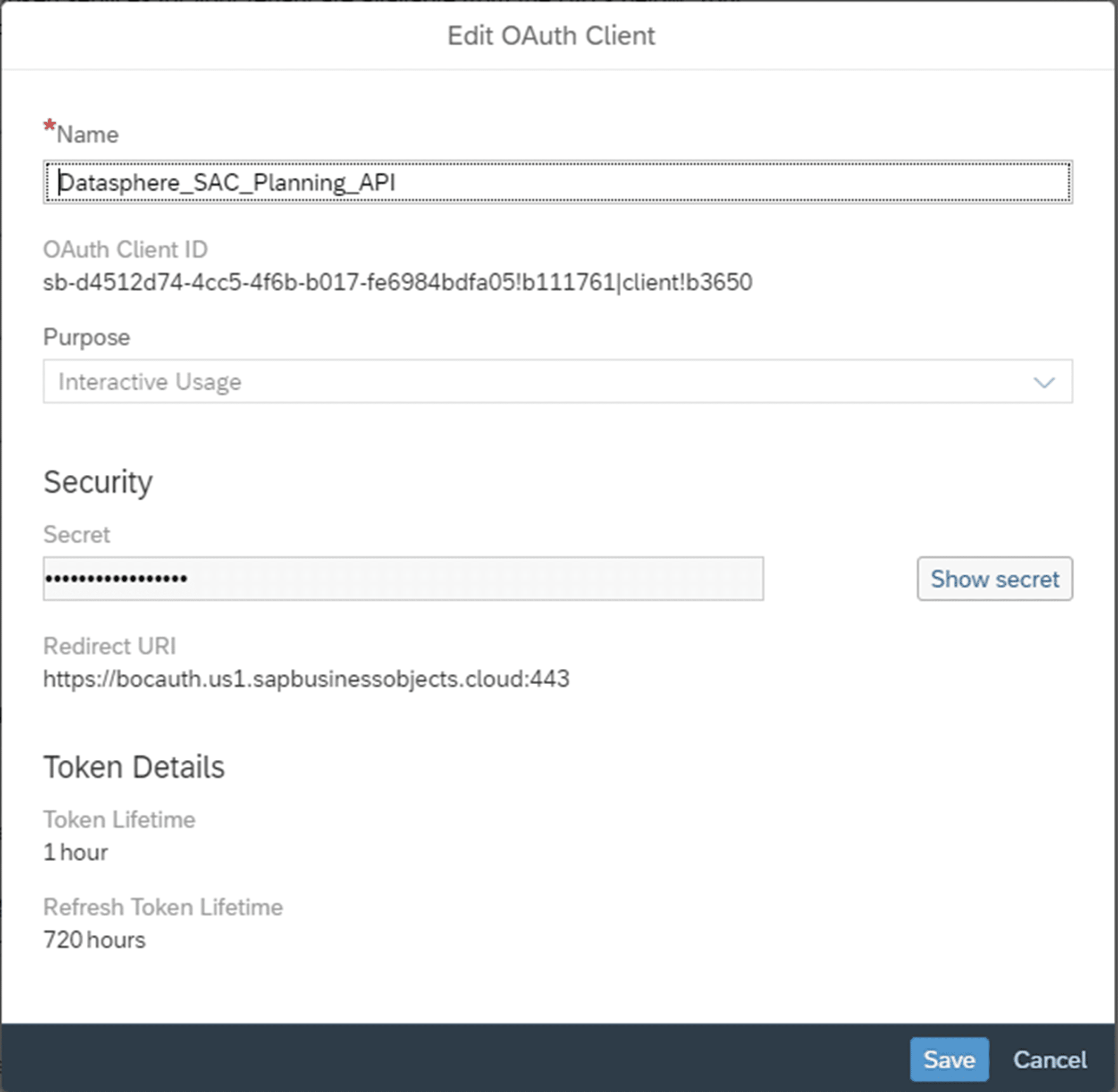
In the window that appears, the following details must be provided:
Name: Freely selectable name
Purpose: Interactive Usage
Redirect URI: To be obtained during the creation of the OData Services Connection in SAC (next step)
Datasphere: OAuth Client Creation (2/2)
The OAuth Client ID and Secret are automatically generated after the client is created.
3. Creating an OData Services Connection in SAC
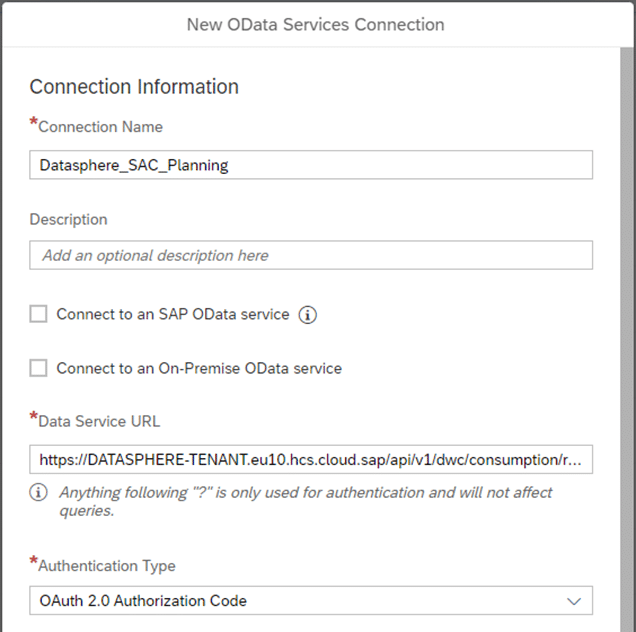
Concurrently, an OData Services Connection must be created in SAC. To do this, select the Connections tab in the menu. A new OData Services Connection can then be created using the "+" symbol.
SAC: OData Services Connection Creation (1/3)
In the window that appears, the following details must be provided:
Connection Name: Freely selectable name
Data Services URL: The "assetRelationDataUrl" determined at the outset
Authentication Type: OAuth 2.0 Authorization Code
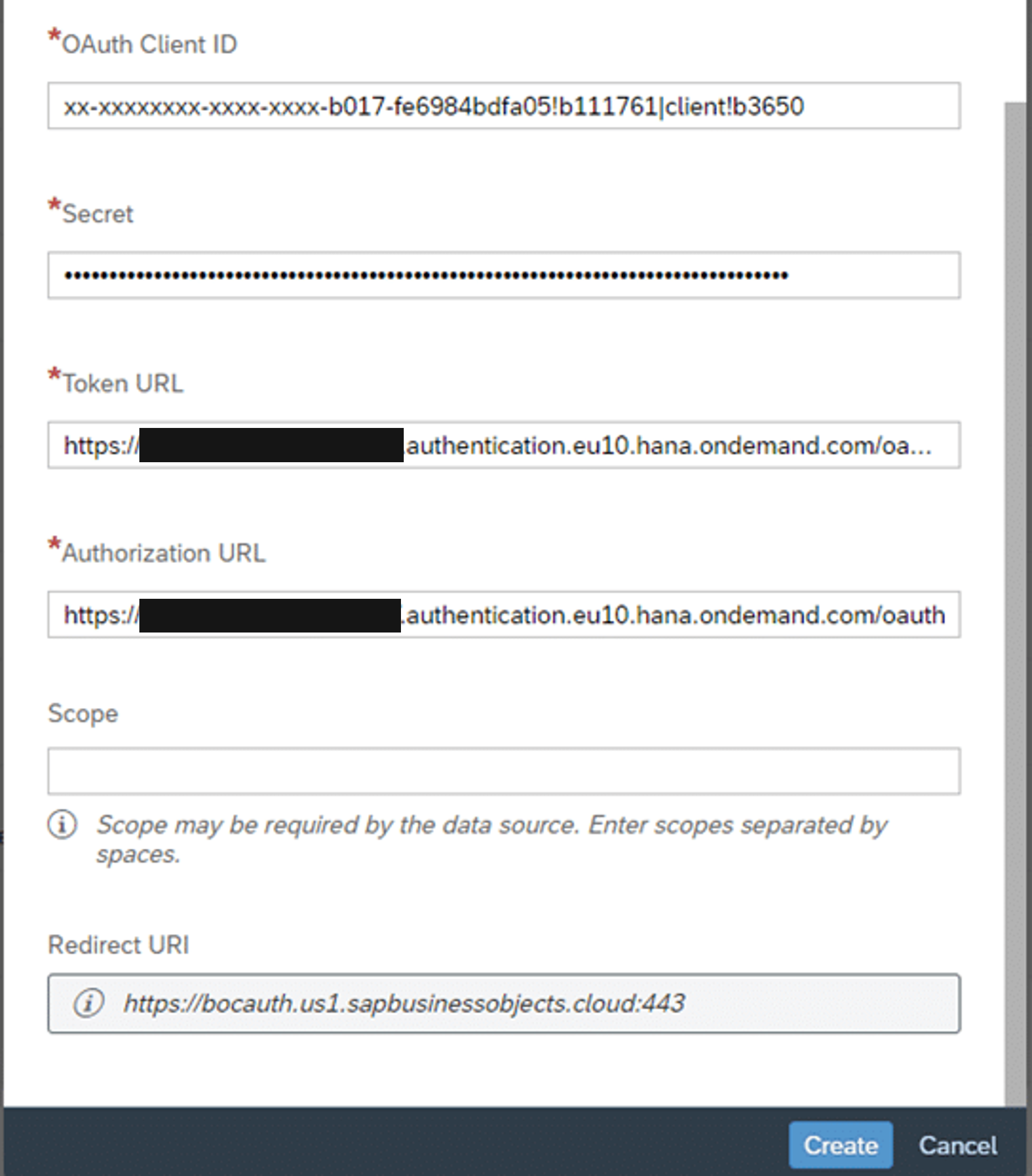
OAuth Client ID: Obtained from the OAuth Client (previous step)
Secret: Obtained from the OAuth Client (previous step)
Token URL: can be retrieved from the section above the created clients in Datasphere.
Additionally, the Redirect URI required for the previous step is located at the end.
SAC: OData Services Connection Creation (2/3)
SAC: OData Services Connection Creation (3/3)
Clicking the 'Create' button establishes the connection. Subsequently, in SAC, either a new model can be created or an existing model can be populated with data from our view.
This process must be executed individually for each asset in Datasphere due to its unique Data Service URL.
4. Data Import and Model Creation in SAP Analytics Cloud
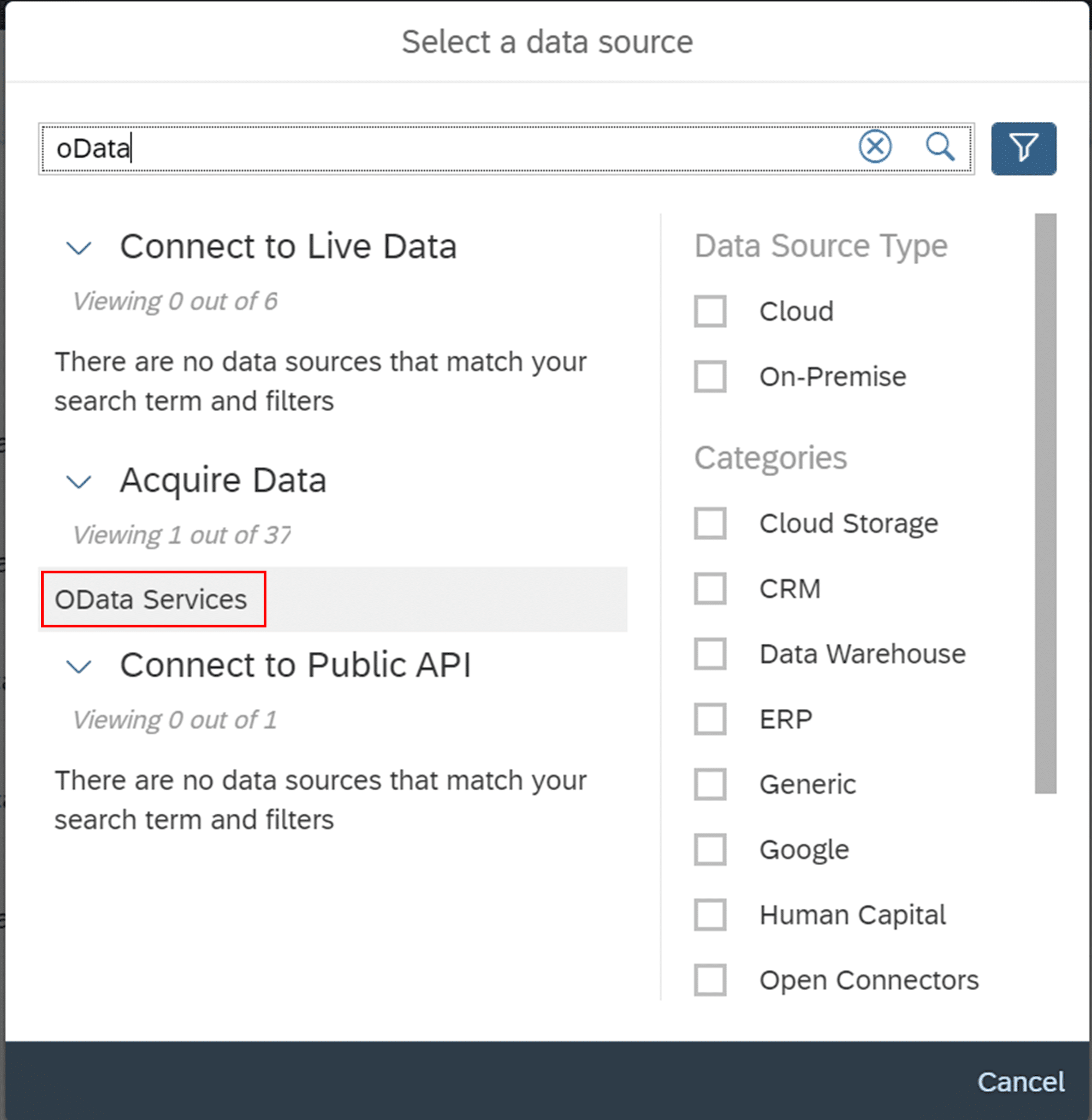
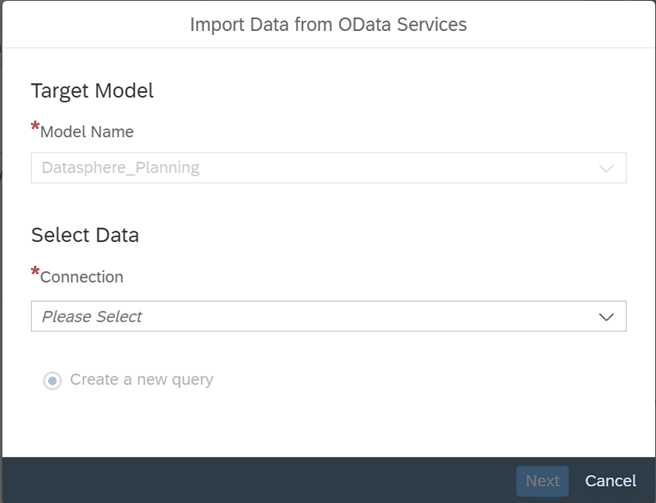
In our example, we have already created a model in SAC, which we will now populate with data from Datasphere. By clicking the 'Import Data' button in the Data Management section of our model, we initiate a new import job. If we select OData Services as the data source, we can then choose the connection we previously established in the next step.
SAC: Connection Selection
Subsequently, we proceed with the standard import process.
Following a successful import, we then create a story based on our model and execute the planning.
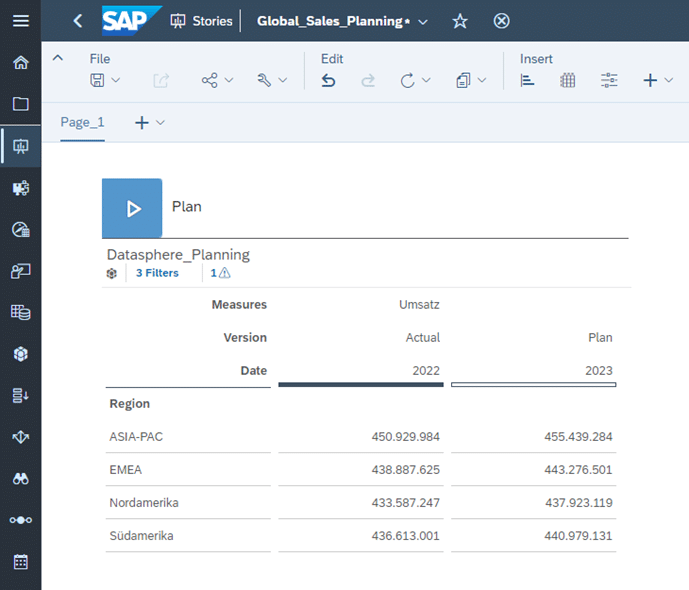
SAC: Story with Input Capabilities for Planning Values
5. Data Write-back from SAP Analytics Cloud to SAP Datasphere
To transfer the data now generated in SAC back to Datasphere, a connection between the two systems must be re-established. To achieve this, we need to set up an OAuth Client in SAC. We navigate to Systems -> Administration -> App Integration -> Add a New OAuth Client.
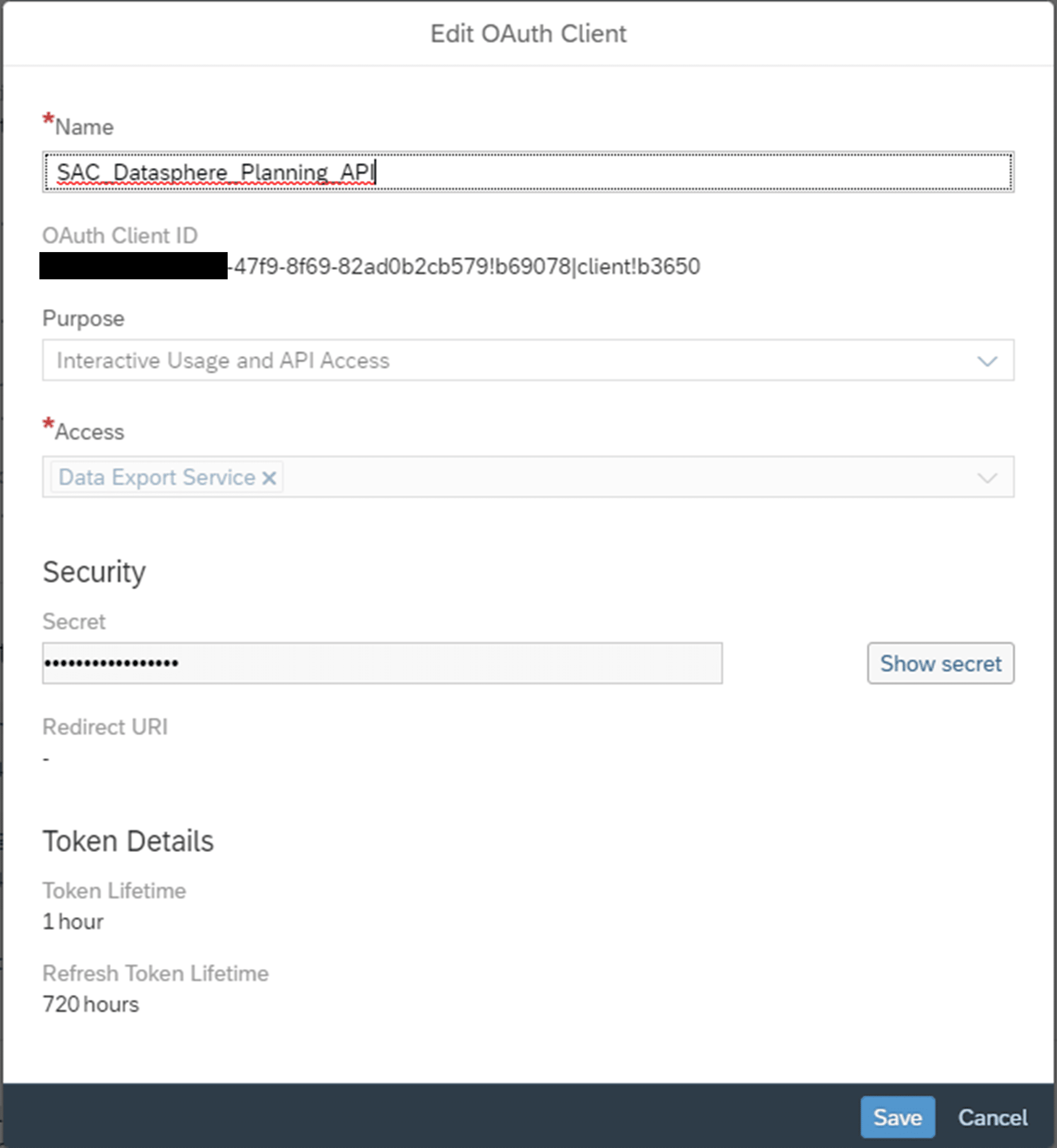
In the window that opens, the following information must be provided:
Name: Freely selectable name
Purpose: Interactive Usage and API Access
Access: Data Export Service
SAC: OAuth Client Creation
Here too, the OAuth Client ID and the Secret are automatically generated upon creation.
6. Setting up a Cloud Data Integration Connection in SAP Analytics Cloud
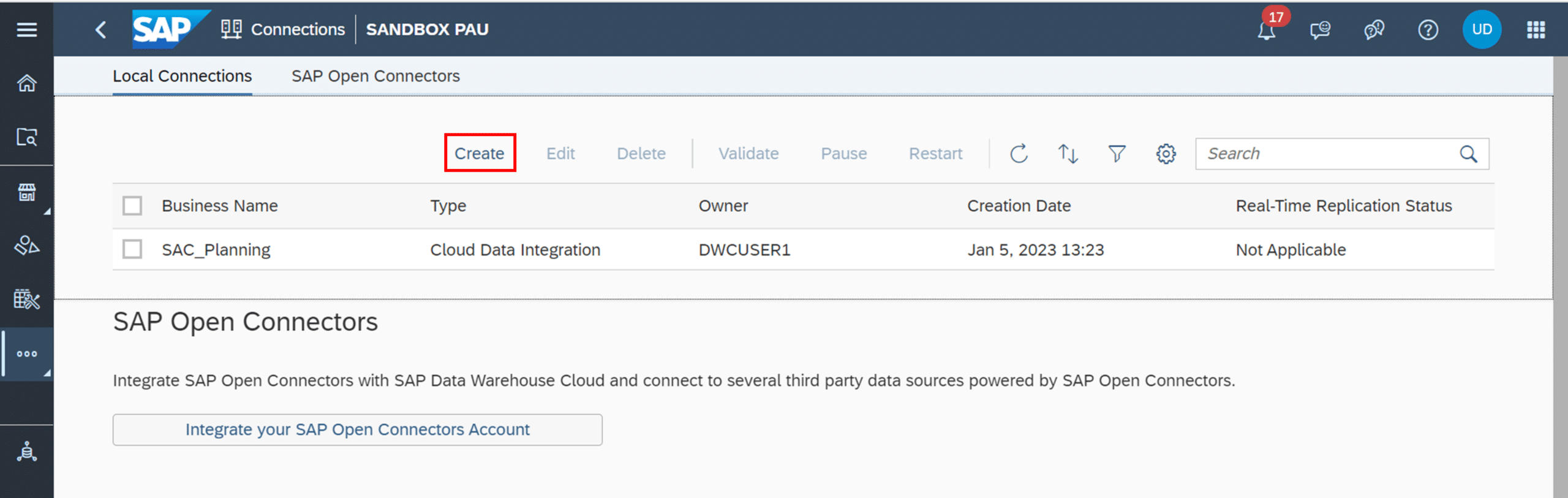
Subsequently, the connection setup must be continued in Datasphere. To do this, we open the 'Connections' tab in the left-hand menu and then select our Space. We can now create a new connection using 'Create'.
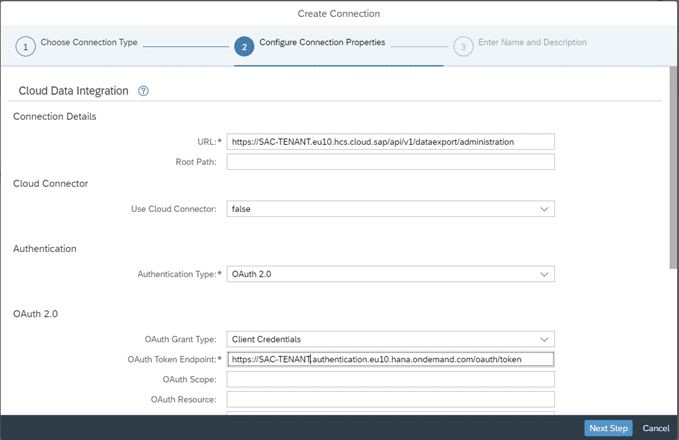
Datasphere: Cloud Data Integration Connection Creation (1/4)
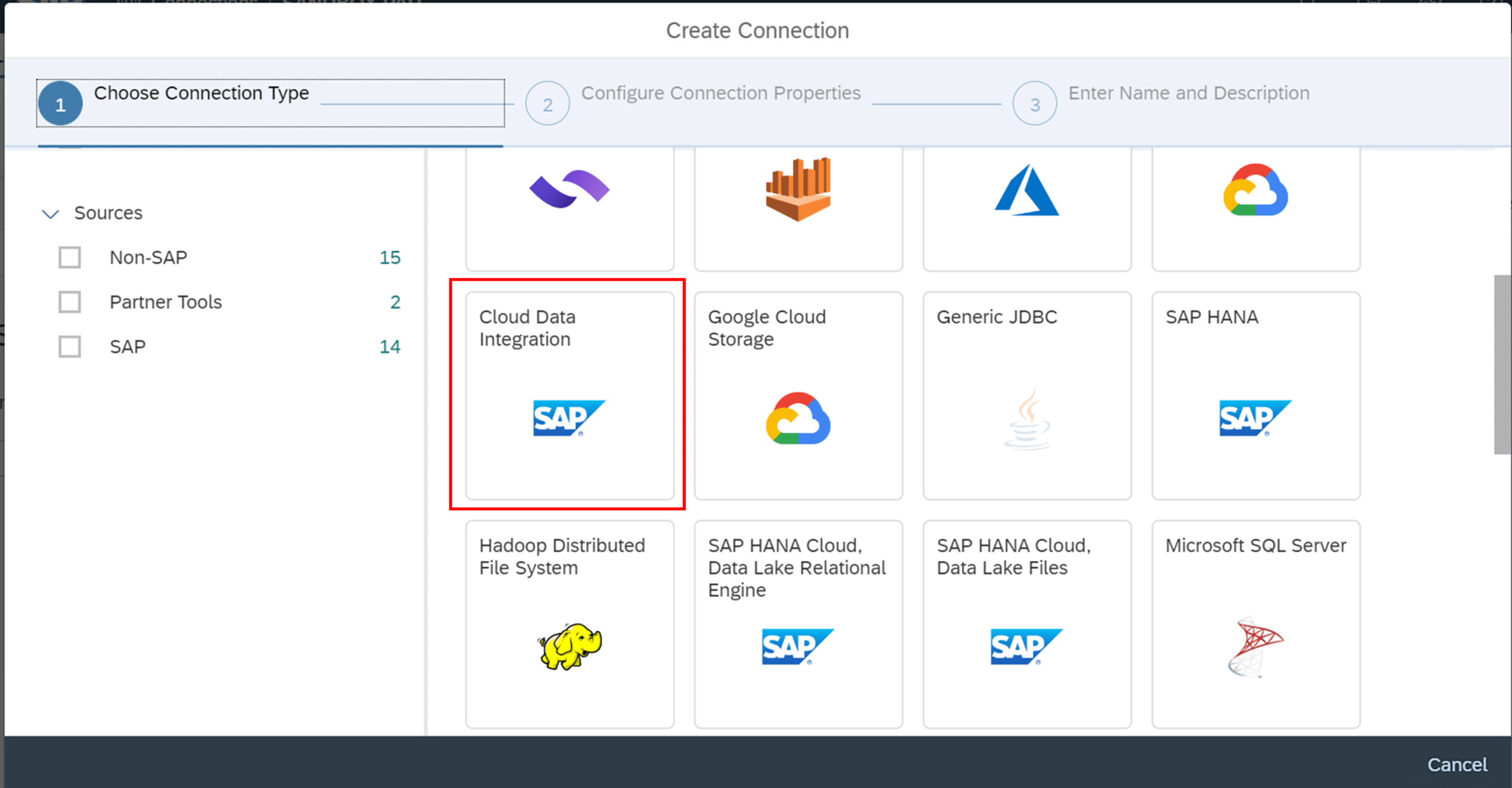
Initially, the Connection Type must be selected, which in this instance is a Cloud Data Integration Connection.
Datasphere: Cloud Data Integration Connection Creation (2/4)
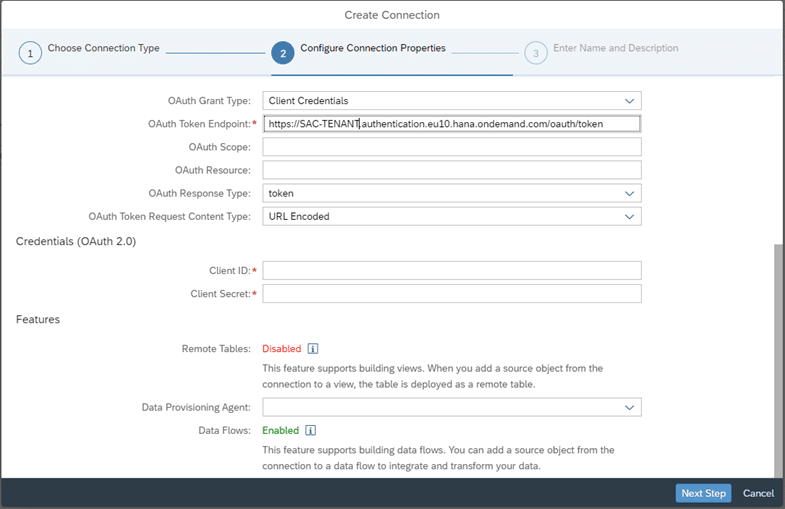
In the next step, the following information must be provided:
Client ID: can be retrieved from the OAuth Client created in SAC
Client Secret: can be retrieved from the OAuth Client created in SAC
Datasphere: Cloud Data Integration Connection Creation (3/4)
Datasphere: Creation of the Cloud Data Integration Connection (4/4)
In the final step, only a name and an optional description need to be selected.
7. Connection Validation and Access to Planning Data in Datasphere
The connection should now be functional. To verify this, select our connection and click on the 'Validate' tab.
Datasphere: Connection Validation
Upon successful connection establishment, a brief confirmation will appear as an information message at the bottom of the screen.
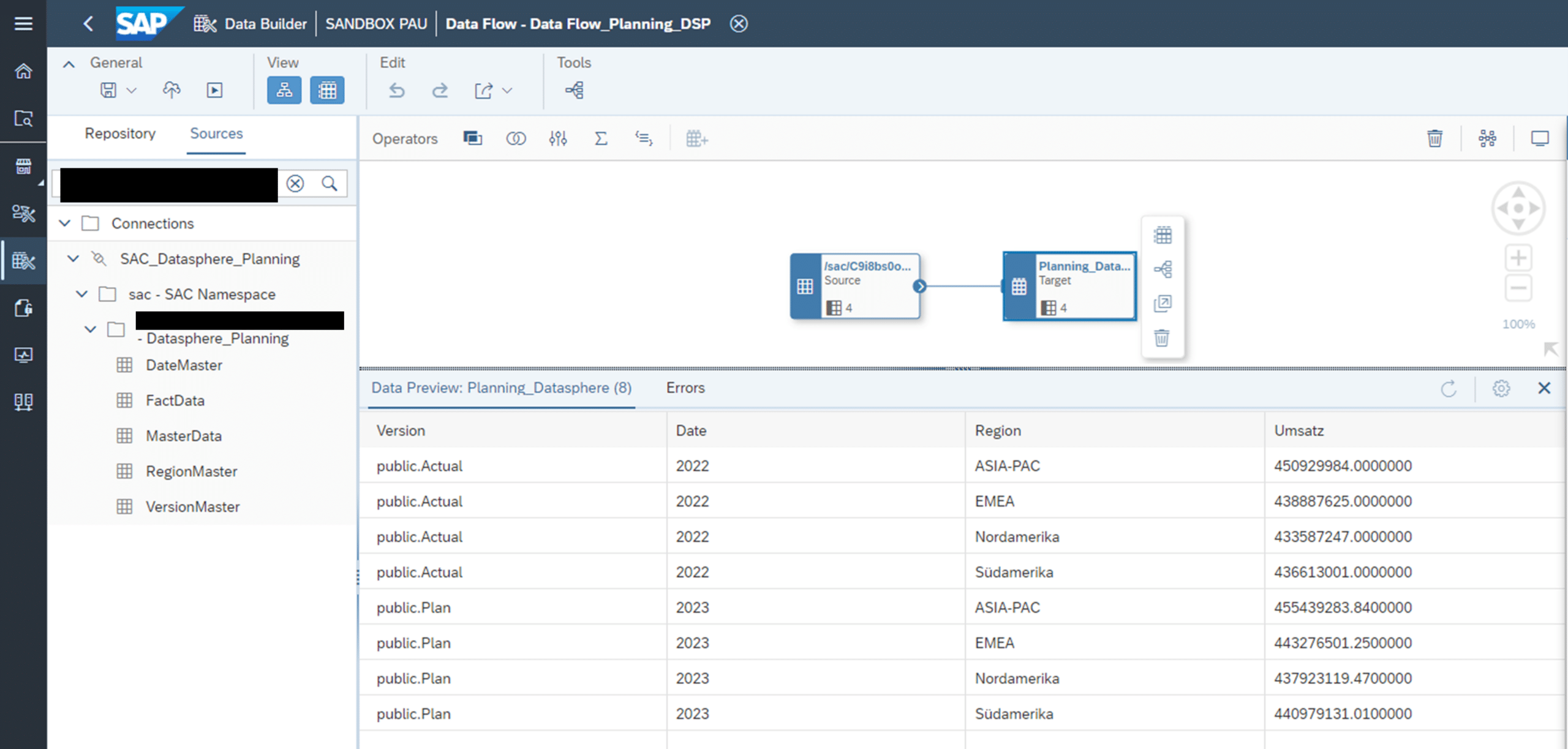
If this is the case, we can now access our data in the Data Builder. Under Sources -> Connections, select our connection and then our model. Using drag and drop, we can now access our planning data, created in SAC, within Datasphere.
Datasphere: Access to Planning Data
8. Conclusion: Potential and Future of Integrated SAP Cloud Systems
The presented scenario demonstrates how SAC, in conjunction with Datasphere, can be utilized for planning scenarios. It is evident that the interplay of these systems, concerning planning requirements, is still in its nascent stages from a technical perspective. This is not surprising. However, given SAP's clear cloud-first strategy and the rapid advancements in both SAC and Datasphere, it is anticipated that the synergy between these two cloud systems will significantly improve in the future, particularly with regard to the demands of planning processes. There is ample potential. It remains intriguing to observe future developments.
Since 1993, we have been operating as IT consultants for Data Analytics and Document Logistics, focusing on data management and process automation. We provide comprehensive support, from strategic IT consulting to specific implementations and solutions, all the way to IT operations, within the framework of holistic Enterprise Information Management (EIM). ISR is part of the CENIT EIM Group.