The Datasphere comes out-of-the-box with the ability to upload your own data in the form of flat files.
This is sufficient for smaller demo scenarios, but for serious use, the requirement to connect data from existing systems quickly arises.
Your own systems are connected via Smart Data Integration (SDI), which is an integral part of Datasphere. A Data Provisioning Agent then provides on premiseWhat does on-premise mean? On-premise refers to infrastructures that are physically... More the bridge to the Datasphere's SDI.
However, since Datasphere is a tenant-based software-as-a-service solution, the SDI component cannot simply be installed on the Datasphere side or configured using the usual means. Instead, Datasphere offers the option of connecting local systems "as-a-service," which only needs to be connected to the local components.
Overview Architecture
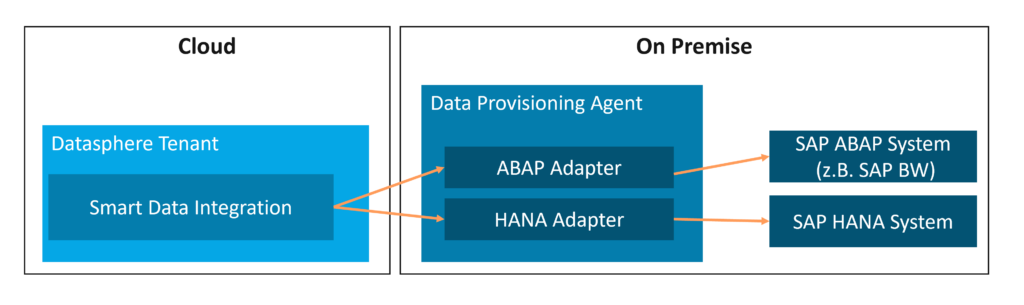
In technical architecture, this looks as follows:
The SDI component of your own Datasphere tenant is defined as the endpoint of the local Data Provisioning Agent. Currently, Datasphere supports the ABAP and HANA adapters of the Provisioning Agent. Future Datasphere releases may support additional adapter types. However, the ABAP and HANA adapters already allow most SAP systems to be connected as source systems, including SAP BW (as an ABAP system) and HANA as a database. In this example, an SAP BW/4HANA 2.0 is to be connected to Datasphere. Since we are assuming that the data warehouse is used as a mixed model (BW and HANA modeling), the system should be connected via both ABAP and HANA adapters. This enables Datasphere to connect to both the BW data models (ADSOs, composite providers, queries) and the HANA data models (tables, views, calculation views).
Required components
requirements
A Datasphere tenant is available, and the corresponding spaces, users, and permissions have been set up.
An SAP BW/4HANA system is available on-premise.
A network connection with appropriate routing and firewall settings allows access between the cloud (Datasphere) and on-premise (Provisioning Agent, SAP source systems).
A local machine with network access to the BW/4HANA source system is available for installing the Provisioning Agent. In the following, we assume that this is a Linux-based server. Please note: Installing the Provisioning Agent directly on the source system (BW/4HANA system) is technically possible, but not recommended.
Required software
To install a local provisioning agent, the following software must be obtained from the SAP Marketplace and made available on the target machine for the provisioning agent: HANA DP AGENT 2.0, SP04 or newer
Procedure for connection
1) Installation of the Data Provisioning Agent on a local machine (on-premise)
1.1 Unzip and install the software downloaded from SAP. On Linux, this is typically done on the command line, i.e.:
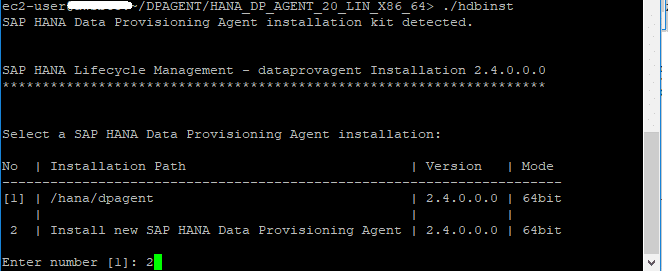
1.2 Install the software. This is done using hdbinst.
An operating system user must be created for the agent beforehand.
It should also be determined in advance which free ports can be used for agent listeners and agent administrators.
The SAP guide for preparing, planning, and performing the installation also contains important information on prerequisites and procedures.
2) Configuration of the Data Provisioning Agent and connection to the Datasphere
After installation, the agent must be configured.
To do this, we need information from our Datasphere tenant about the endpoint with which the local provisioning agent should communicate. To do this:
2.1 Register a new Data Provisioning Agent in the Datasphere with an admin user in the Data Sources area:
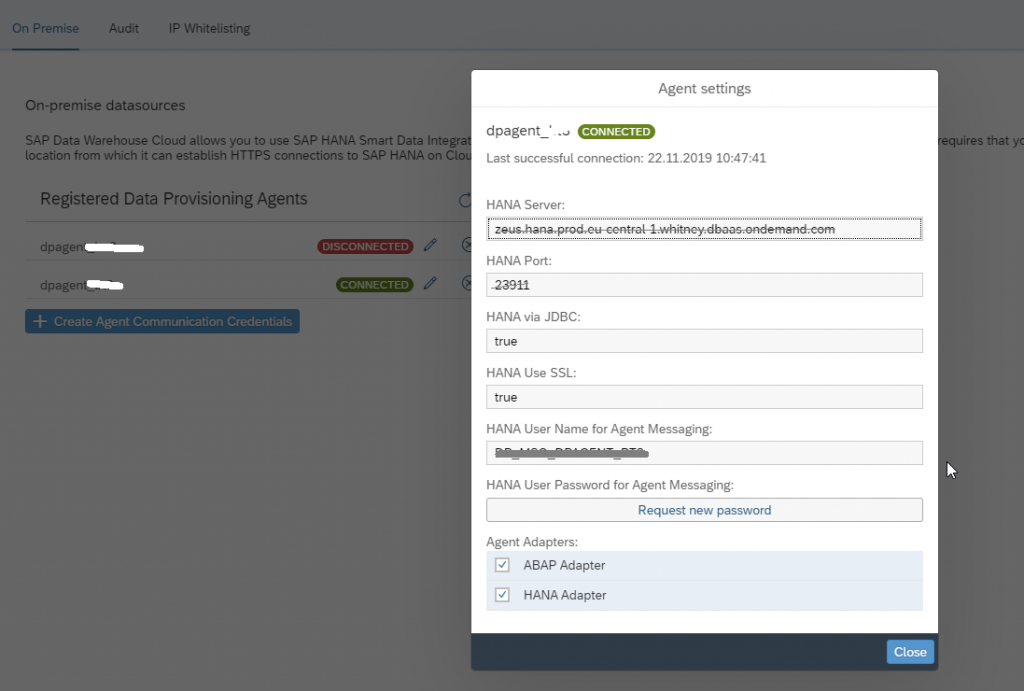
After entering the name for the new agent, an information window appears containing important connection information for the agent to Datasphere:
Server names (depending on where the Datasphere tenant is hosted)
port
Username and password for connection
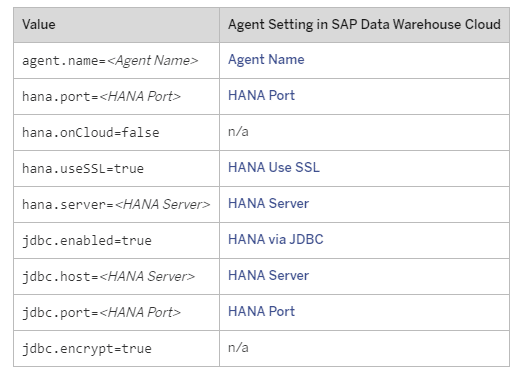
2.2 The local agent you just installed now needs to be connected to the Datasphere. To do this, enter the Datasphere connection information in the agent's dpagentconfig.ini file:
Now the agent can be started:
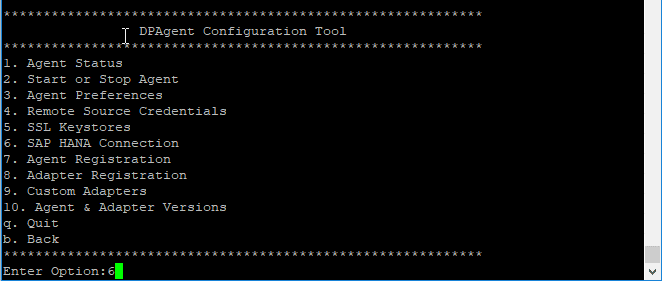
To do this, a new SAP HANA connection is specified (option 2 in the configuration menu):
2.3 Register the ABAP and HANA adapters for this agent in the Datasphere:
Edit the agent you just created in the Datasphere
Select both HANA and ABAP adapters
The Provisioning Agent should now be registered and connected:
2.4 The local agent you just installed must now be connected to the Datasphere:
The registered agent is now communicating with the Datasphere, but a connection to a specific source system must first be created in the Datasphere and assigned to the respective spaces as a resource before the data from the on-premise systems can also be accessed via the agent.
In addition:
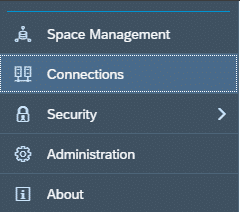
Create a new connection (type ABAP or HANA) under "Connections."
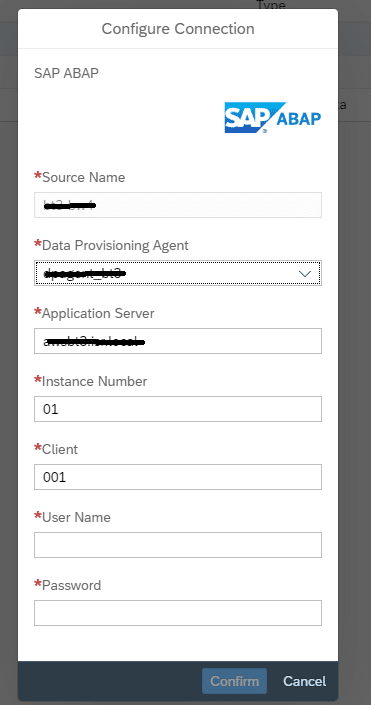
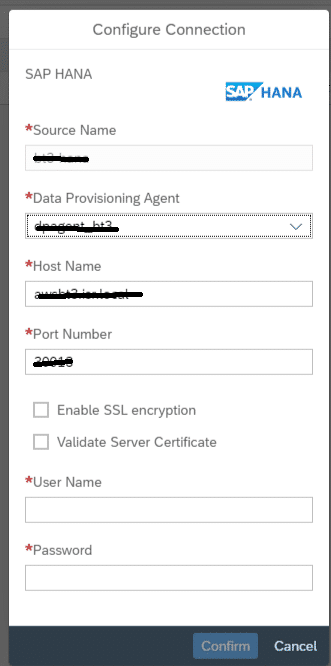
Enter a name, select the Provisioning Agent you just created, and enter the technical information about the source system (server, port, user, password).
Connections to BW/4HANA (ABAP):
ABAP Adapter
Specify host, instance, and client as in SAPGUI connection
and then a valid BW user name and password
Connections to the HANA DB:
HANA Adapter
Host: Specify the host name of the HANA instance.
Port: depends on which DB tenant is to be connected to. The corresponding JDBC port from the HANA configuration must be specified!
User name and password also depend on the target DB tenant
Conclusion: The connection can now be used in Space.
Connecting your own on-premise systems to the Datasphere is quick and easy thanks to the Smart Data Integration component, which simply requires setting up a central Data Provisioning Agent on premise.
This then accesses the source systems on your behalf, ensuring a transparent connection to the Datasphere.
It is not necessary to connect each individual system separately.
Currently, SAP systems in particular can be quickly integrated here using the ABAP and HANA adapters. Support for additional adapter types is hoped for.
Since 1993, we have been operating as IT consultants for Data Analytics and Document Logistics, focusing on data management and process automation. We provide comprehensive support, from strategic IT consulting to specific implementations and solutions, all the way to IT operations, within the framework of holistic Enterprise Information Management (EIM). ISR is part of the CENIT EIM Group.