SAP Analytics Cloud (SAC) – Migration from Account Model to 'New Model'

Share post via

It is well-known that SAP Analytics Cloud (SAC) has become a powerful, innovative, and pioneering tool in the planning domain. The introduction of the 'New Model' in 2021 – as an enhancement to the initial Account Model – was undoubtedly one of the pivotal factors contributing to this.
We have already outlined the numerous advantages of the 'New Model' compared to the Account Model in a previous blog articleWhile the Account Model can still be effectively utilized in specific areas, such as financial planning, the 'New Model' offers significantly greater flexibility in modeling and integrating diverse planning processes. Furthermore, account models can also be implemented within the 'New Model'.

Given that SAP's strategic direction clearly prioritizes the 'New Model', a migration functionality is offered within SAP Analytics Cloud. Consequently, existing Account Models can be relatively easily migrated to the new paradigm of the 'New Model' through this functionality. 

This blog article demonstrates the migration of an Account Model to a new model type, including data transfer, within SAP Analytics Cloud.

More on this Topic

SAC – AN INSIGHT INTO THE NEW MODEL TYPES

In addition to creating a planning model as a 'Classic Account Model', SAC has also offered the option since mid-2021 to create a model as a 'New Model'. 

View Blog Article

Model Migration

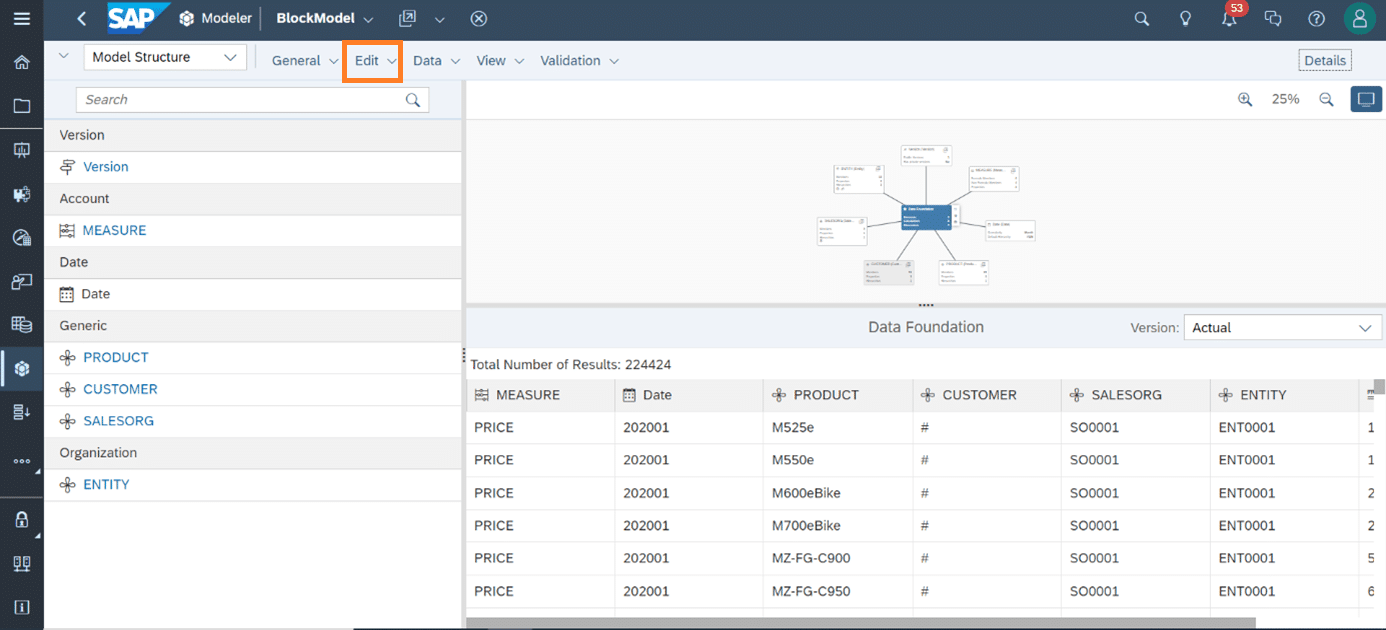
First, we define a simple Account Model as an example.

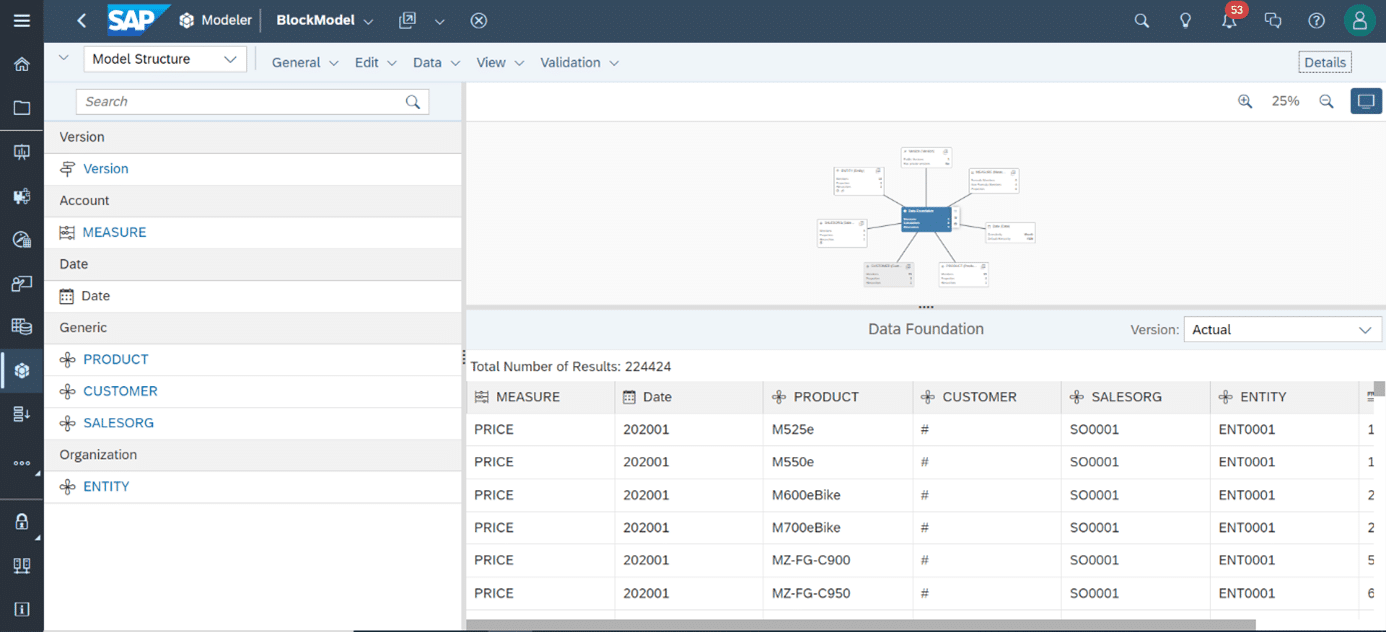
For the example model, various dimensions of the following types were created:
  • Generic (PRODUCT, CUSTOMER, SALESORG)
  • Organization (ENTITY)
  • Account (MEASURE)
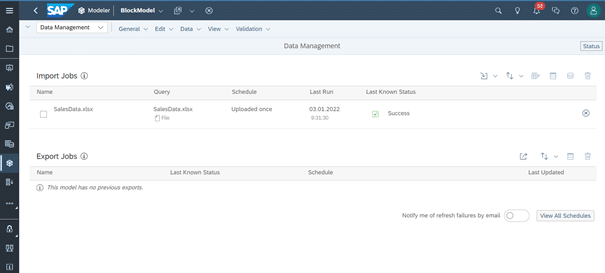
Data for populating the dimensions is uploaded via the 'Data Management' view.

After the data, in the form of the '.xlsx' file 'SalesData', has been uploaded, one returns to the 'Model Structure' view. Here, under the 'Edit' tab, the 'Migrate to New Model Type' action can be selected to convert the Account Model into the 'New Model'.

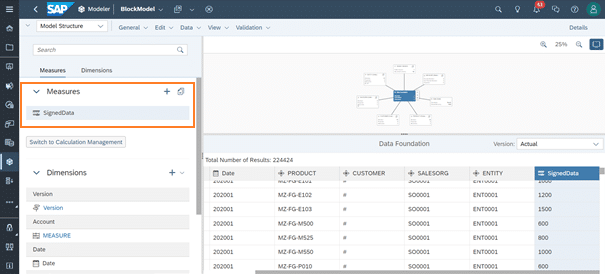
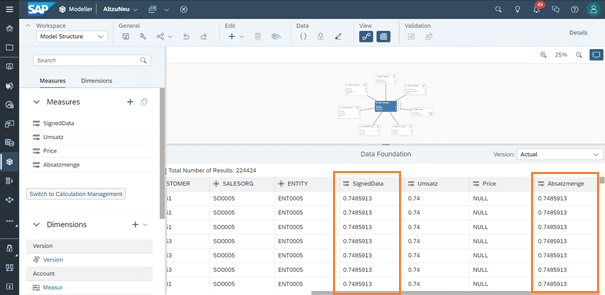
After the conversion to the 'New Model', the default measure 'SignedData' can be found within the measures. The values of the individual characteristics of the Account Dimensions are correctly assigned.

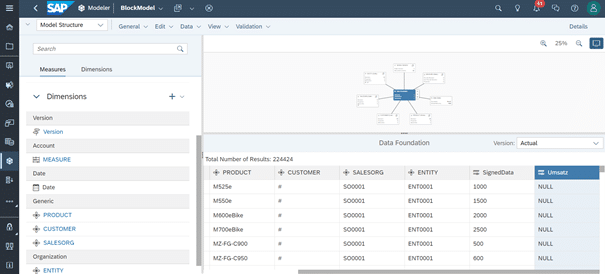
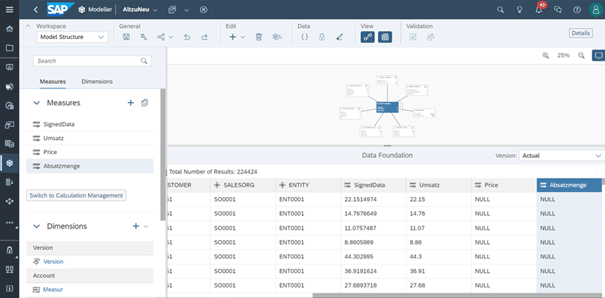
In our example, the measures 'Revenue', 'Price', and 'Sales Quantity' are now added.In the 'Data Foundation', the new key figure 'Revenue' is placed in the columns next to the 'SignedData' from the old Account Model ('Sales Quantity' and 'Price' are not shown here). Initially, the new key figures are filled with NULL.

Once the technical migration of the Account Model to the 'New Model' is complete and new measures (key figures) have been created, the topic of data transfer, i.e., data migration, within the model can be addressed. 

Data Transfer from SignedData to Other Measures

Data from the 'SignedData' measure can be transferred to other measures. For this purpose, we utilize a Story and a Data Action. The entire process is demonstrated in our simple example using an 'Actual' version. If other versions exist in a model, it is crucial to select the correct version for the respective data transfer.

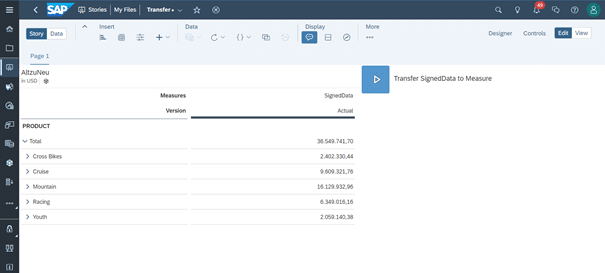
In the next step, a Story is created, serving solely for data transfer. This Story is equipped with a Data Action 'Transfer SignedData to Measure', which, in our example, transfers the relevant data from 'SignedData' to 'Sales Quantity'.

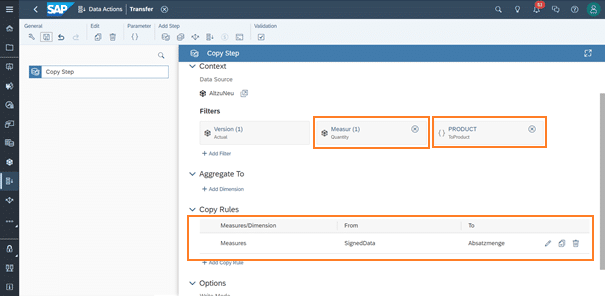
The Data Action in our example consists solely of a Copy Step, transferring data from the 'SignedData' measure to 'Sales Quantity'. By applying the 'Quantity' filter across the Account Dimension, it is ensured that only 'Quantity' data is transferred, and the measure is not populated with other data from 'SignedData'. Additionally, the 'PRODUCT' variable is inserted to enable individual data transfer for all customers/branches.

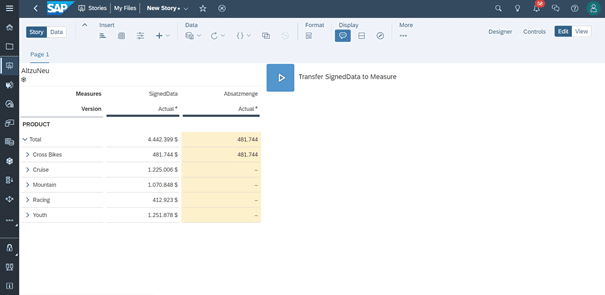
After executing the 'Transfer SignedData to Measure' Data Action, the data has been transferred.

Since the filter for the product group 'Cross Bikes' was set during execution, only sales quantities for 'Cross Bikes' are transferred. Thus, the Data Action in our example enables data transfer selected by individual product groups. Similarly, Data Actions can be utilized in other planning scenarios. The values of individual accounts within an Account Model can therefore be transferred to the respective correct key figure (Measure) in further Data Action steps within a Multi Action.

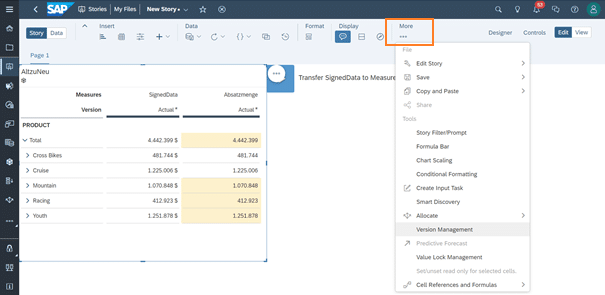
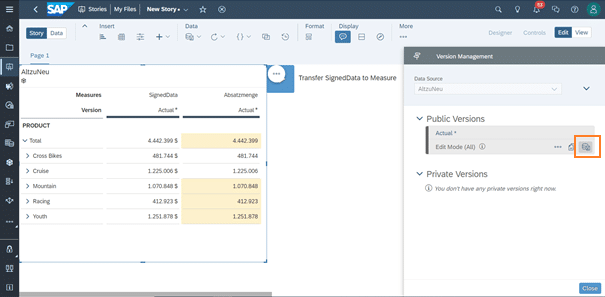
Subsequently, the table must be selected to access Version Management via the 'More' tab. In our example, data for all product groups (individually) was transferred beforehand.

In Version Management, after verifying that the data transfer from 'SignedData' to the respective key figures was correct and successful, the updated Actual Version can be published.

In the Data Foundation, the assignment of the transferred data to further planning objects with higher granularity in the planning model can still be verified.

Thus, the migration from the Account Model to the 'New Model' in SAP Analytics Cloud is now successfully completed.

About ISR

Since 1993, we have been operating as IT consultants for Data Analytics and Document Logistics, focusing on data management and process automation.
We provide comprehensive support, from strategic IT consulting to specific implementations and solutions, all the way to IT operations, within the framework of holistic Enterprise Information Management (EIM).
ISR is part of the CENIT EIM Group.

Visit us virtually on these channels:

News Categories
News Archive

Latest Publications

Upcoming ISR Events

[tribe_events_list limit=”3″]