
Front-end tools are playing an increasingly central role in the field of business intelligence and analytics. Today, they are aimed both at developers for creating complex reports and applications, and at end users with sometimes extensive self-service solutions.
Comprehensive tools combine the entire spectrum from data acquisition and data preparation to customized reports.
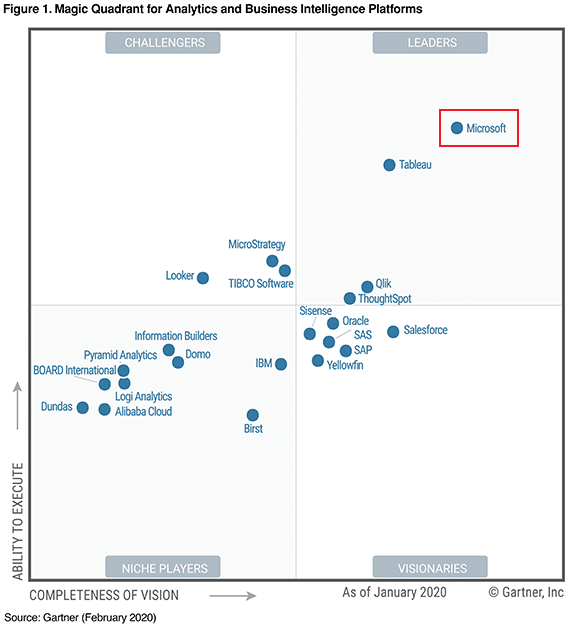
Gartner Inc. regularly publishes market research results and analyses on developments in IT. In the field of business intelligence solutions, products available on the market are evaluated and classified into different categories. These "Magic Quadrants" are generally regarded as reliable indicators of the direction in which the market is developing.
This blog focuses on Microsoft Power BI, the leading tool in this field according to the February 2020 Gartner Magic Quadrant for Analytics and Business Intelligence Platforms. The focus here is less on the tool itself and more on its integration with SAP BW/4 HANA and HANA.
Establishing a connection
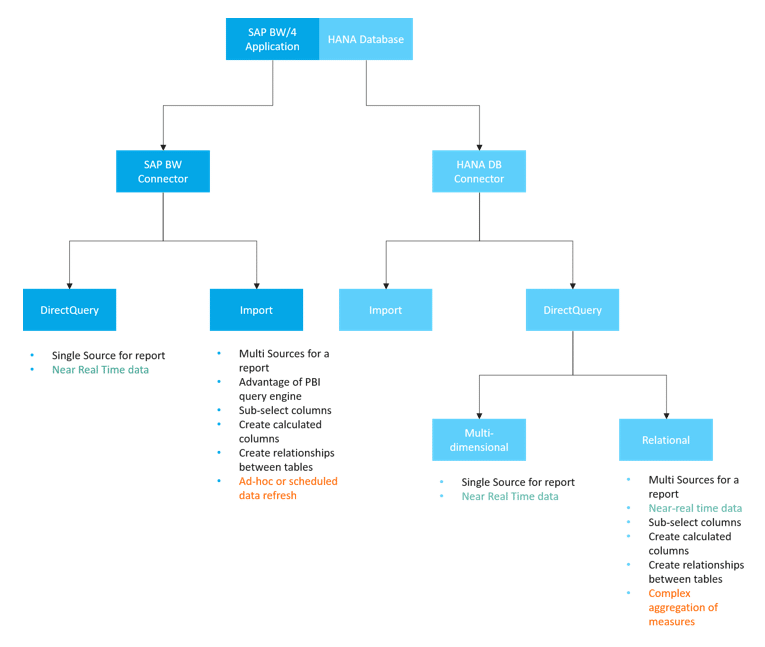
Power BI offers two connectors to SAP systems:
- SAP HANA Database Connector
- SAP Business Warehouse Application/Message Server Connector
Depending on the connector, different queries may be considered:
Known "special features" when connecting to an SAP HANA data warehouse
There are a few things to keep in mind when connecting Power BI to HANA. Below, we have compiled some information about these "special features":
Problems with SAP HANA DB features
Connection to SAP HANA DB (data type restrictions)
The following collection of problems comes from Microsoft: https://docs.microsoft.com/en-us/power-bi/connect-data/desktop-sap-hana.
| data type | restriction |
|---|---|
| NVARCHAR | Strings are truncated to a maximum length of 4000 Unicode characters. |
| SMALLDECIMAL | Not supported. |
| VARBINARY | Not supported. |
| Valid Dates | Between December 30, 1899, and December 31, 9999. |
Connection to SAP HANA DB via DirectQuery (multidimensional source)
Modeling
The following collection of problems comes from Microsoft: https://docs.microsoft.com/en-us/power-bi/connect-data/desktop-directquery-sap-hana.
| Function | Description |
|---|---|
| No support for calculated columns | The ability to create calculated columns is disabled. This also means that Grouping and Clustering, which create calculated columns, are not available. |
| Additional limitations for measures | There are additional limitations imposed on the DAX expressions that can be used in measures, to reflect the level of support offered by SAP HANA. |
| No support for defining relationships | Only a single view can be queried within a report, and as such, there is no support for defining relationships. |
| No Data View | Normally displays the detail level data in the tables. Given the nature of OLAP sources such as SAP HANA, this view is not available over SAP HANA. |
| Column and measure details are fixed | The list of columns and measures seen in the field list are fixed by the underlying source, and cannot be modified. For example, it is not possible to delete a column, nor change its data type (it can, however, be renamed). |
| Additional limitations in DAX | There are additional limitations on the DAX that can be used in measure definitions, to reflect limitations in the source. For example, it is not possible to use an aggregate function over a table. |
visualization
| Function | Description |
|---|---|
| No aggregation of columns | It is not possible to change the aggregation for a column on a visual, and it is always Do Not Summarize. |
Known issues
| Function | Description |
|---|---|
| SAP HANA issue when querying counters and other measures | Incorrect data is returned from SAP HANA if connecting to an Analytical View, and a Counter measure and some other ratio measure are included in the same visual. This is covered by SAP Note 2128928 (Unexpected results when querying a Calculated Column and a Counter). The ratio measure will be incorrect in this case. |
| Multiple Power BI columns from a single SAP HANA column | For some calculation views, where a SAP HANA column is used in more than one hierarchy, SAP HANA exposes this as two separate attributes. This results in two columns being created in Power BI. Those columns are hidden by default, however, and all queries involving the hierarchies, or the columns directly, behave correctly. |
General restrictions or SAP HANA functions that behave differently
| Function | Description |
|---|---|
| Parent-Child Hierarchies | Parent-child hierarchies will not be visible in Power BI. This is because Power BI accesses SAP HANA using the SQL interface, and parent-child hierarchies cannot be fully accessed via SQL. |
| Other hierarchy metadata | The basic structure of hierarchies is displayed in Power BI, however some hierarchy metadata (such as controlling the behavior of ragged hierarchies) will have no effect. Again, this is due to the limitations imposed by the SQL interface. |
| Connection using SSL | You can connect using Import and multi-dimensional with SSL, but cannot connect to SAP HANA instances configured to use SSL for the relational connector. |
| Support for attribute views | Power BI can connect to Analytic and Calculation views, but cannot connect directly to Attribute views. |
| Support for Catalog objects | Power BI cannot connect to Catalog objects. |
| Modify variables after publishing | You cannot change the values for any SAP HANA variables directly in the Power BI service after the report has been published. |
Problems with SAP BW features
Connection to SAP BW via DirectQuery (multidimensional source)
The following collection of problems comes from Microsoft: https://docs.microsoft.com/en-us/power-bi/connect-data/desktop-directquery-sap-bw.
Modeling
Same restrictions as for connections to SAP HANA DB via DirectQuery.
visualization
| Function | Description |
|---|---|
| No aggregation of columns | It is not possible to change the aggregation for a column on a visual; it is always Do Not Summarize. |
| Measure filtering is disabled | Measure filtering is disabled to reflect the support offered by SAP BW. |
| Multi-select and include/exclude | The ability to multi-select data points on a visual is disabled if the points represent values from more than one column. For example, given a bar chart showing Sales by Country, with Category on the Legend, it would not be possible to select the point for (USA, Bikes) and (France, Clothes). Similarly, it would not be possible to select the point for (USA, Bikes) and exclude it from the visual. Both limitations are imposed to reflect the support offered by SAP BW. |
General restrictions or SAP BW functions that behave differently
| Function | Description |
|---|---|
| Local calculations | Local calculations defined in a BEx query will change the numbers as displayed through tools like BEx Analyzer. However, they are not reflected in the numbers returned from SAP, through the public MDX interface. As such, the numbers seen in a Power BI visual will not necessarily match those for a corresponding visual in an SAP tool. For example, when connecting to a query cube from a BEx query that sets the aggregation to be Cumulated (i.e. running sum), Power BI would get back the base numbers, ignoring that setting. An analyst could certainly then apply a running sum calculation locally in Power BI, but would need to exercise caution in how the numbers are interpreted if this is not done. |
| Aggregations | In some cases (particularly when dealing with multiple currencies), the aggregate numbers returned by the SAP public interface do not match those shown by SAP tools. As such, the numbers seen in a Power BI visual will not necessarily match those for a corresponding visual in an SAP tool. For example, totals across different currencies would show as "*" in BEx Analyzer, but the total would be returned by the SAP public interface, without any information that such an aggregate number is meaningless. Thus, the number (aggregating, say, $, EUR, and AUD) would be displayed by Power BI. |
| Currency formatting | Any currency formatting (for example, $2,300 or 4000 AUD) is not reflected in Power BI. |
| Units of measure | Units of measure (for example, 230 KG) are not reflected in Power BI. |
| Key versus text (short, medium, long) | For an SAP BW characteristic such as CostCenter, the field list will show a single column Cost Center. Using that column will display the default text. By showing hidden fields, it will also be possible to see the unique name column (which returns the unique name assigned by SAP BW, and is the basis of uniqueness). The key and other text fields are not available. |
| Additional limitations in DAX | There are additional limitations on the DAX that can be used in measure definitions, to reflect limitations in the source. For example, it is not possible to use an aggregate function over a table. |
| Multiple hierarchies of a characteristic |
In SAP: A characteristic can have multiple hierarchies. Then in tools like BEx Analyzer, when a characteristic is included in a query, the user can select the hierarchy to use. In Power BI: The various hierarchies can be seen in the field list as different hierarchies on the same dimension. However, selecting multiple levels from two different hierarchies on the same dimension will result in empty data being returned by SAP. |
| Treatment of ragged hierarchies | |
| Scaling factor/reverse sign | In SAP, a key figure can have a scaling factor (for example, 1000) defined as a formatting option, meaning that all display will be scaled by that factor. It can similarly have a property set that reverses the sign. Use of such a key figure in Power BI (in a visual, or as part of a calculation) will result in the unscaled number being used (and the sign is not reversed). The underlying scaling factor is not available. In Power BI visuals, the scale units shown on the axis (K,M,B) can be controlled as part of the visual formatting. |
| Hierarchies where levels appear/disappear dynamically | Initially when connecting to SAP BW, the information on the levels of a hierarchy will be retrieved, resulting in a set of fields in the field list. This is cached, and if the set of levels changes, then the set of fields do not change until Refresh is invoked. This is only possible in Power BI Desktop. Such Refresh to reflect changes to the levels cannot be invoked in the Power BI service after Publish. |
| Default filter | A BEx query can include default filters, which will be applied automatically by SAP BEx Analyzer. These are not exposed, and hence the equivalent usage in Power BI will not apply the same filters by default. |
| Hidden key figures | A BEx query can control the visibility of key figures, and those that are hidden will not appear in SAP BEx Analyzer. This is not reflected through the public API, and hence such hidden key figures will still appear in the field list. However, they can then be hidden within Power BI. |
| Numeric formatting | Any numeric formatting (number of decimal places, decimal point, etc.) will not automatically be reflected in Power BI. However, it is possible to then control such formatting within Power BI. |
| Hierarchy versioning | SAP BW allows different versions of a hierarchy to be maintained, for example, the cost center hierarchy in 2007 versus 2008. Only the latest version will be available in Power BI, as information on versions is not exposed by the public API. |
| Time-dependent hierarchies | When using Power BI, time-dependent hierarchies are evaluated at the current date. |
| Conversion of currency | SAP BW supports currency conversion based on rates held in the cube. Such capabilities are not exposed by the public API and are therefore not available in Power BI. |
| Sort Order | The sort order (by Text, or by Key) for a characteristic can be defined in SAP. This sort order is not reflected in Power BI. For example, months might appear as "April," "Aug," and so on. It is not possible to change this sort order in Power BI. |
| Technical names | In Get Data, the characteristic/measure names (descriptions) and technical names can both be seen. The field list will contain just the characteristic/measure names (descriptions). |
| Attributes | It is not possible to access the attributes of a characteristic within Power BI. |
| End user language setting | The locale used to connect to SAP BW is set as part of the connection details and does not reflect the locale of the final report consumer. |
| Text variables | SAP BW allows field names to contain placeholders for variables (for example, "$YEAR$ Actuals") that would then be replaced by the selected value. For example, the field appears as "2016 Actuals" in BEx tools if the year 2016 were selected for the variable. The column name in Power BI will not be changed depending on the variable value, and therefore would appear as "$YEAR$ Actuals". However, the column name can then be changed in Power BI. |
| Customer exit variables | Customer exit variables are not exposed by the public API and are therefore not supported by Power BI. |
| Characteristic Structures | Any characteristic structures in the underlying SAP BW source will result in an 'explosion' of measures being exposed in Power BI. For example, with two measures, Sales and Costs, and a characteristic structure containing Budget and Actual, four measures will be exposed: Sales.Budget, Sales.Actual, Costs.Budget, Costs.Actual. |
Conclusion
Microsoft's Power BI is a powerful BI tool for data preparation and visualization, which is particularly aimed at end users thanks to its simple interface. In addition to various other sources, data from SAP BW can also be consumed. The limitations of BW/HANA DB functionalities affect a wide range of areas and can lead to significant problems depending on how a system is structured. For example, Power BI does not support "customer exit variables." However, these are often used for background logic designed to adapt query results to individual inputs. Such logic may need to be implemented differently. There are also some limitations regarding modeling and visualization options. These are partly due to the interface used (MDX), which, for example, does not pass on values calculated locally in the query.
This blog entry is not intended to be an evaluation of Power BI itself. Rather, it focuses on highlighting the special features of the Power BI connection so that these can be taken into account in the architecture design.

Christopher Kampmann
Head of Business Unit
Data & Analytics
christopher.kampmann@isr.de
+49 (0) 151 422 05 448